Advent of Cyber 2025 Day 1-5
Every year, TryHackMe hosts an Advent of Cyber event where they release a new room every day leading up to Christmas. This post will contain my writeups for Advent of Cyber 2025 day 1-5.
Day 1: Linux CLI - Shells Bells
Explore the Linux command-line interface and use it to unveil Christmas mysteries.
Learning Objectives
- Understand the basics of the Linux command-line interface (CLI)
- Explore how the CLI is used for personal workflows and IT administration
- Apply this knowledge to uncover the Christmas mysteries
Linux is a command-line–driven operating system based on Unix. Many modern operating systems are built on top of Linux.
Its CLI is extremely powerful, enabling system management and automation entirely through typed commands — no GUI required.
In fact, most experienced IT and cybersecurity professionals work with the CLI daily.
Running Your First Commands
-
Run your first command with:
echo "Hello World!"
This prints the text back to you. -
List the contents of the current directory:
ls
This will show McSkidy’s files. -
Display a file’s contents:
cat README.txt
The output appears directly in the terminal.
Navigating the Filesystem
-
Move into a directory:
cd Guides
This changes your path to/home/mcskidy/Guides. -
View the directory contents again:
ls
(The example directory is empty.)
Looking for the Hidden Guide
Linux hides files and directories whose names start with a dot (e.g., .secret.txt).
This is useful for system configurations — or for attackers hiding malware — and in this case, for McSkidy hiding a secret guide.
-
Show all files, including hidden ones:
ls -la
-a→ show hidden items
-l→ show file details (permissions, owner, size, etc.) -
Read the hidden guide:
cat .guide.txt
(Don't forget the leading dot.)
Grepping the Logs
Large log files are hard to read with cat, so SOC analysts use grep to search for specific text inside files.
-
Navigate to the logs directory:
cd /var/log -
Explore its contents:
ls -
Search
auth.logfor failed login attempts:
grep "Failed password" auth.log
This filters the log and shows only matching entries.
Finding Files
The find command searches for files that match specific criteria (location, name, type, size, etc.).
- Search for files containing the word "egg" in their names:
find /home/socmas -name "*egg*"
find is incredibly powerful — more details here:
https://man7.org/linux/man-pages/man1/find.1.html
Analyzing the “Eggstrike” Script
Files ending in .sh are shell scripts. They contain CLI commands and are used by IT teams for automation — and by attackers to execute malicious actions quickly.
When reviewing a suspicious script:
- Lines beginning with
#are comments. cat wishlist.txt | sort | uniq
→ Reads wishlist.txt, sorts it, and prints unique items.- The output is redirected to a file:
> /tmp/dump.txt rm wishlist.txt
→ Deletes the original wishlist.mv eastmas.txt wishlist.txt
→ Replaces the wishlist with a malicious file.
Useful Special Symbols
| Symbol | Description | Example |
|--|-||
| \| (pipe) | Send output from one command to the next | cat list.txt \| sort \| uniq |
| > / >> | > overwrites a file; >> appends to a file | cmd > output.txt |
| && | Run the next command only if the first succeeds | grep "secret" notes.txt && echo "Found!" |
Sir Carrotbane Attacks
The investigation confirms that the server was breached.
Sir Carrotbane replaced the wishlist by accessing:
http://10.64.135.230:8080/ from VM's web browser.
System Utilities
Linux provides hundreds of CLI commands to inspect and manage your system:
uptime— how long the system has been runningip addr— view network interfacesps aux— list all running processes
System username and password hashes (including McSkidy’s) are located in: /etc/shadow
⚠️ Access requires root privileges.
Root User
The root user is the most powerful account in Linux — able to modify any file or setting.
-
Switch to the root user:
sudo su -
Verify the current user:
whoami -
Return to the previous user:
exit
Because root has unrestricted access, it is a prime target for attackers.
Bash History
Linux records all terminal commands in a hidden file called Bash history:
- McSkidy’s history:
/home/mcskidy/.bash_history - Root’s history:
/root/.bash_history
You can view command history with:
history— list past commandscat .bash_history— read the log file directly
This is extremely helpful for auditing activity.
Quick Review Questions
Which CLI command would you use to list a directory?
ls
Which command helped you filter the logs for failed logins?
grep
Which command would you run to switch to the root user?
sudo su
Day 2: Phishing – Merry Clickmas
Learn how to use the Social-Engineer Toolkit (SET) to craft and deliver phishing emails.
Learning Objectives
- Understand what social engineering is
- Learn the types of phishing
- Explore how red teams clone or create fake login pages
- Use the Social-Engineer Toolkit (SET) to send a phishing email
Social Engineering
Social engineering refers to manipulating a human into making mistakes—such as revealing passwords, opening malicious files, or approving fraudulent transactions.
Unlike technical exploits, social engineering targets people, relying on psychological triggers such as:
- Urgency
- Curiosity
- Authority
For this reason, social engineering is often called “human hacking.”
Phishing
Phishing is a type of social engineering where the attacker sends deceptive messages to trick users into clicking, opening, or replying.
Common phishing variants include:
- Email phishing (most common)
- Smishing – SMS phishing
- Vishing – Voice-call phishing
- Quishing – QR-code phishing
- Social media phishing – DM attacks
Modern phishing campaigns are highly convincing, making it difficult even for cautious users to detect them.
Anti-Phishing Mnemonic: S.T.O.P.
S.T.O.P. #1 – Ask yourself:
- Suspicious?
- Telling me to click something?
- Offering an amazing deal?
- Pushing me to act now?
S.T.O.P. #2 – How to stay safe:
- Slow down — attackers exploit adrenaline.
- Type the URL yourself — avoid clicking links.
- Open nothing unexpected. Verify first.
- Prove the sender — check the real email/number, not the display name.
Building the Trap
A successful phishing attack requires:
- A convincing email/message
- A realistic-looking malicious login page or attachment
Attackers may:
- Attach malware
- Clone login portals
- Use fraudulent sender identities
Your goal is to craft something believable enough that the target interacts with it.
Delivery via Social-Engineer Toolkit (SET)
SET is an open-source tool built for social engineering campaigns.
It allows red teams to:
- Create phishing pages
- Send phishing emails
- Conduct mass or targeted campaigns
Start SET with:
setoolkitYou'll see a menu. For phishing:
- Social-Engineering Attacks
- Mass Mailer Attack
- E-Mail Attack Single Email Address
Example Terminal Flow:
root@attackbox:~# setoolkit

 Select from the menu:

   1) Social-Engineering Attacks
   2) Penetration Testing (Fast-Track)
   3) Third Party Modules
   4) Update the Social-Engineer Toolkit
   5) Update SET configuration
   6) Help, Credits, and About

  99) Exit the Social-Engineer Toolkit

set> 1
Choosing 1 will display another menu with the type of social engineering attack we want to use in our attack. In this case, we will pick Mass Mailer Attack by typing 5.
 Select from the menu:

   1) Spear-Phishing Attack Vectors
   2) Website Attack Vectors
   3) Infectious Media Generator
   4) Create a Payload and Listener
   5) Mass Mailer Attack
   6) Arduino-Based Attack Vector
   7) Wireless Access Point Attack Vector
   8) QRCode Generator Attack Vector
   9) PowerShell Attack Vectors
  10) Third-Party Modules

  99) Return back to the main menu.

set> 5
Now, we would be asked to select between two options. One option allows us to send the phishing email to a single address, while the other option enables us to send an email to many people. Here, we would select option 1, i.e., E-Mail Attack Single Email Address.
   Social Engineer Toolkit Mass E-Mailer

   There are two options on the mass e-mailer: the first is to email one person. The second option
   will allow you to import a list and send it to as many people as
   you want within that list.

   What do you want to do:

    1. E-Mail Attack Single Email Address
    2. E-Mail Attack Mass Mailer

    99. Return to the main menu.

set:mailer> 1
Now, we will have several questions to answer and various fields to fill out. The first set of questions concerns the email addresses and how the email will be routed and delivered. After each input provided, we can press Enter to get to the next question.
- Send email to: Let’s begin by targeting [email protected]
- How to deliver the email: We will choose Use your own server or open relay
- From address: We know that the guys at the toy factory communicate regularly with Flying Deer, the shipping company, so that we will use [email protected] as the source email address
- From name: Let’s use the name Flying Deer
- Username for open-relay: We will leave it blank and just hit the Enter key
- Password for open-relay: We will leave it blank and just hit the Enter key
- SMTP email server address: We will deliver directly to the TBFC mail server by entering 10.66.181.119.
- Port number for the SMTP server: We leave the default value of 25 and just hit the Enter key
The next set of questions will ask if you want to send it as a high priority or attach a file.
- Flag this message as high priority: The choice is entirely up to you, depending on your knowledge of the circumstances, but we will answer with no
- Do you want to attach a file: We will answer with n
- Do you want to attach an inline file: Again, let’s answer with n
Finally, we pick an email subject and enter the message contents in plaintext or HTML.
- Email subject: We need to think of something convincing, for example, “Shipping Schedule Changes”
- Send the message as HTML or plain: We will keep the default choice of plaintext and just hit the Enter key
- Enter the body of the message, and type END (capitals) when finished: Create and type any convincing message. Make sure to include the URL http://10.66.155.210:8000 to check if the target will fall for this trick.
An example interaction is shown in the terminal below.
set:mailer>1
set:phishing> Send email to:[email protected]

  1. Use a Gmail account for your email attack.
  2. Use your own server or open relay

set:phishing>2
set:phishing> From address (ex: [email protected]):[email protected]
set:phishing> The FROM NAME the user will see:Deer Shipping
set:phishing> Username for open-relay [blank]:
Password for open-relay [blank]:
set:phishing> SMTP email server address (ex. smtp.youremailserveryouown.com):10.66.181.119
set:phishing> Port number for the SMTP server [25]:
set:phishing> Flag this message/s as high priority? [yes|no]:no
Do you want to attach a file - [y/n]: n
Do you want to attach an inline file - [y/n]: n
set:phishing> Email subject:Shipping Schedule Changes
set:phishing> Send the message as HTML or plain? 'h' or 'p' [p]:
[!] IMPORTANT: When finished, type END (all capital) then hit {return} on a new line.
set:phishing> Enter the body of the message, type END (capitals) when finished:Dear elves,
Next line of the body: Kindly note that there have been significant changes to the shipping schedules due to increased shipping orders.
Next line of the body: Please confirm the new schedule by visiting http://10.66.155.210:8000
Next line of the body: Best regards,
Next line of the body: Flying Deer
Next line of the body: END
[*] SET has finished sending the emails

      Press <return> to continue
Now, the phishing email has been successfully sent to the target.
The "Press
Next, open the terminal where your server.py script is running to monitor whether the target interacts with the phishing page and enters their credentials.
⏳ Note: It may take 1–2 minutes before any captured credentials appear in the terminal. Continue observing the output.
⚠️ Real-World Impact
To the TBFC red team’s surprise, at least one set of valid credentials was received.
This is alarming, as it confirms that an adversary could execute the same attack with real consequences — and may already have done so. If an attacker gains access using stolen credentials, they can severely disrupt the gift delivery systems.
It is crucial to verify whether such unauthorized access has occurred and take appropriate defensive actions immediately.
✔️ Summary
This challenge provided a hands-on introduction to how phishing works and how attackers craft convincing phishing campaigns using the Social-Engineer Toolkit (SET).
Key Takeaways
- Social engineering fundamentals — how attackers manipulate humans through urgency, curiosity, and authority
- Phishing variations — email phishing, smishing, vishing, quishing, and social-media phishing
- Recognizing phishing indicators — using S.T.O.P. techniques to evaluate suspicious messages
- Crafting & delivering a phishing email using the Social-Engineer Toolkit (SET)
- SET was used to generate a realistic phishing email
- We configured sender details, SMTP routing, and message content
- Monitoring credential capture — observing the attack server to verify if the target submitted credentials
Overall, this challenge demonstrates how attackers leverage SET to automate phishing campaigns and how defenders must understand these techniques to detect and prevent real-world attacks.
Day 3: Splunk Basics - Did you SIEM?
Learn how to ingest and parse custom log data using Splunk.
Learning Objectives
- Ingest and interpret custom log data in Splunk
- Create and apply custom field extractions
- Use Search Processing Language (SPL) to filter and refine search results
- Conduct an investigation within Splunk to uncover key insights
Splunk
Splunk is a platform for collecting, storing, and analysing machine data. It provides various tools for analysing data, including search, correlation, and visualisation. It is a powerful tool that organisations of all sizes can use to improve their IT operations and security posture.
Exploring the Logs
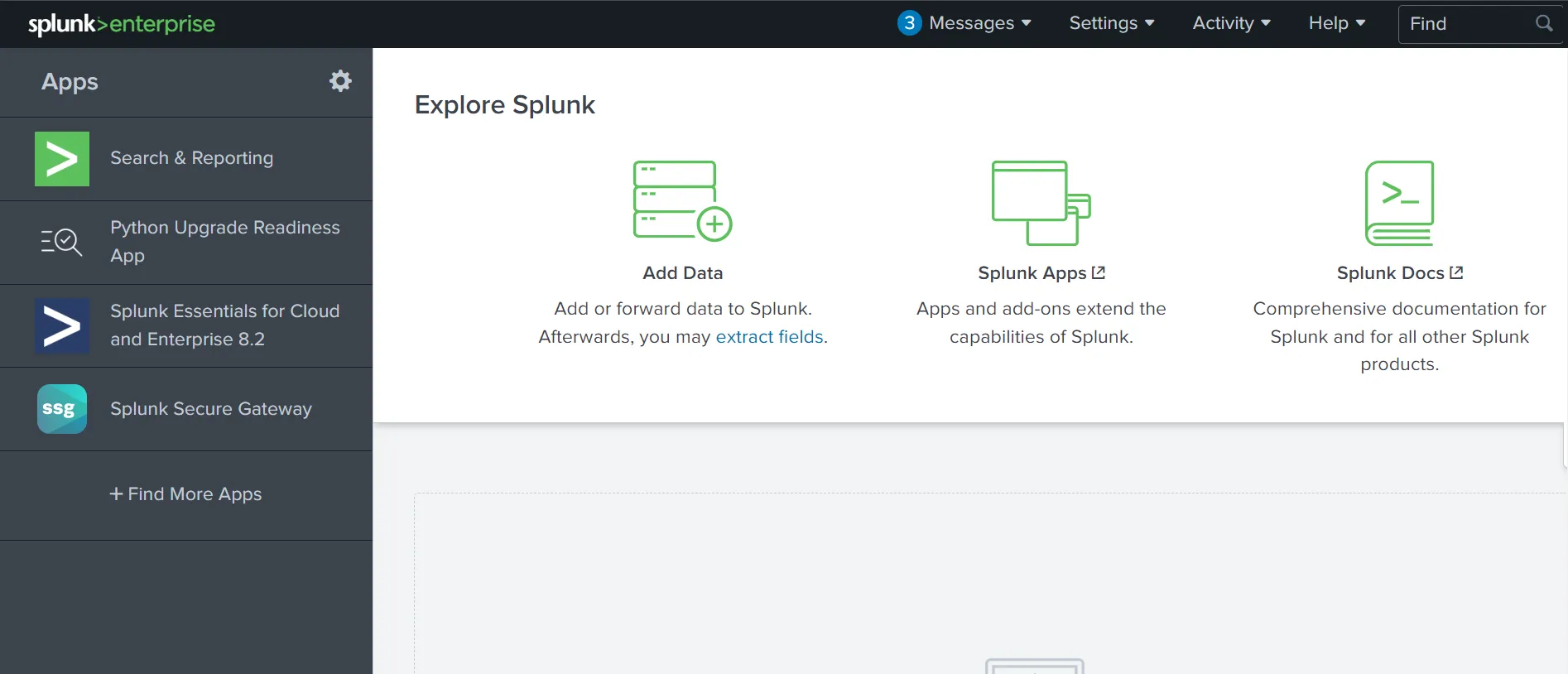
In the Splunk instance, the data has been pre-ingested for us to investigate the incident. On the Splunk interface, click on Search & Reporting on the left panel, as shown below:
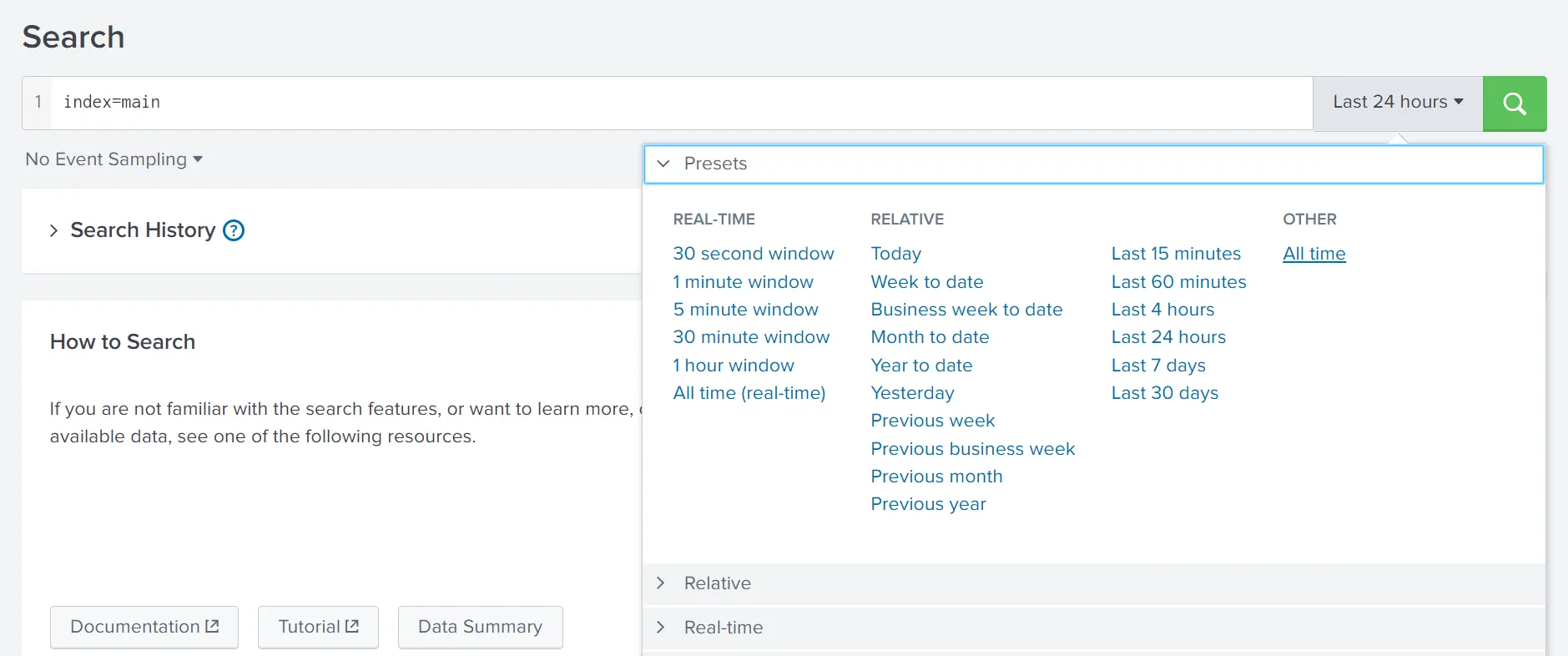
On the next page, type "index=main" in the search bar to show all ingested logs. Note that we will need to select All time as the time frame from the dropdown on the right of the search bar.
After running the query, we will be presented with two separate datasets that have been pre-ingested into Splunk. We can verify this by clicking on the "sourcetype" field in the fields list on the left of the page.
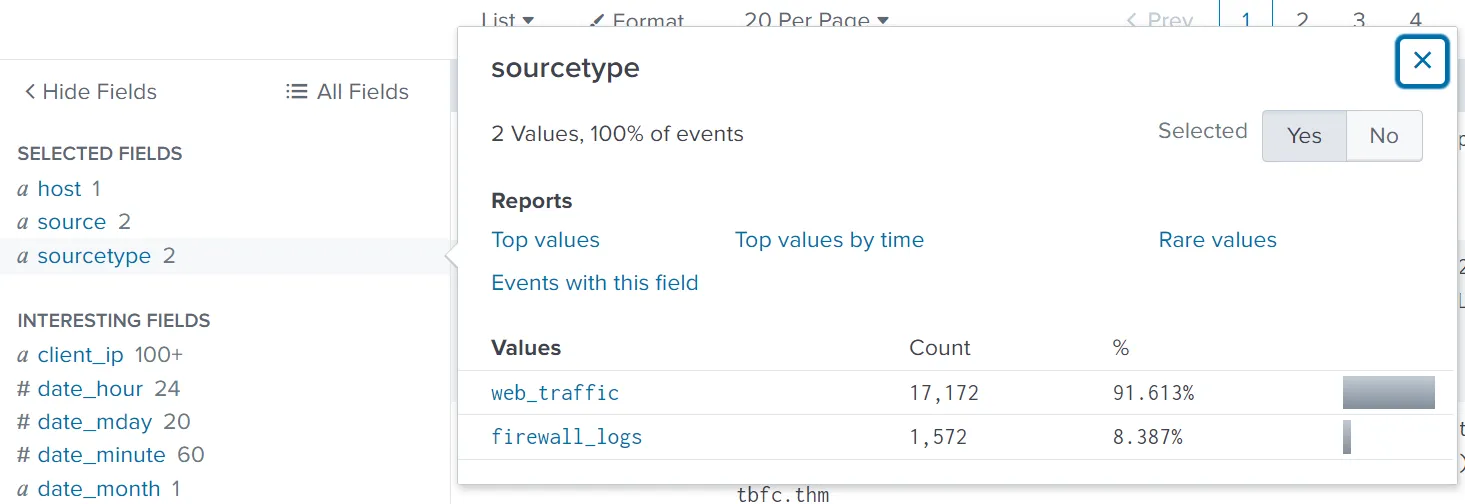
The two datasets are as follows:
- web_traffic: This data source contains events related to web connections to and from the web server.
- firewall_logs: This data source contains the firewall logs, showing the traffic allowed or blocked. The local IP assigned to the web server is 10.10.1.15. Let's explore the logs and investigate the attack on our servers to identify the culprit.
Initial Triage
Start a basic search across the index using your custom source type web_traffic, using the following query:
Search query: index=main sourcetype=web_traffic
Let's break down our result for a better understanding:
- Search query: This query retrieves all events from the main index that were tagged with the custom source type web_traffic. This marks the beginning of the investigation.
- Time range: The time range is currently set to "All time". In security analysis, this range would be tightened (e.g., to the spike window) after initial data loading.
- Timeline: This visual histogram shows the distribution of the 17,172 events over time. The graph indicates the successful daily log volume followed by a distinctive traffic spike (a period of high activity, likely the attack window).
- Selected fields: These are the fields currently chosen to be displayed in the summary column of the event list (host, source, sourcetype). They represent basic metadata about the log file itself.
- Interesting fields: This pane lists all fields that Splunk has automatically extracted or manually added. Fields prefixed with # (e.g., #date_hour) are automatically generated by Splunk's time commands. The presence of user_agent, path, and client_ip confirms the successful parsing of the web log structure.
- Event details & field extraction: This section shows the parsed details of a single event with extracted fields like user_agent, path, status, client_ip, and more.
Now that we have an understanding of the Splunk layout and how to read the logs in Splunk. Let's continue our analysis of the logs.
Visualizing the Logs Timeline
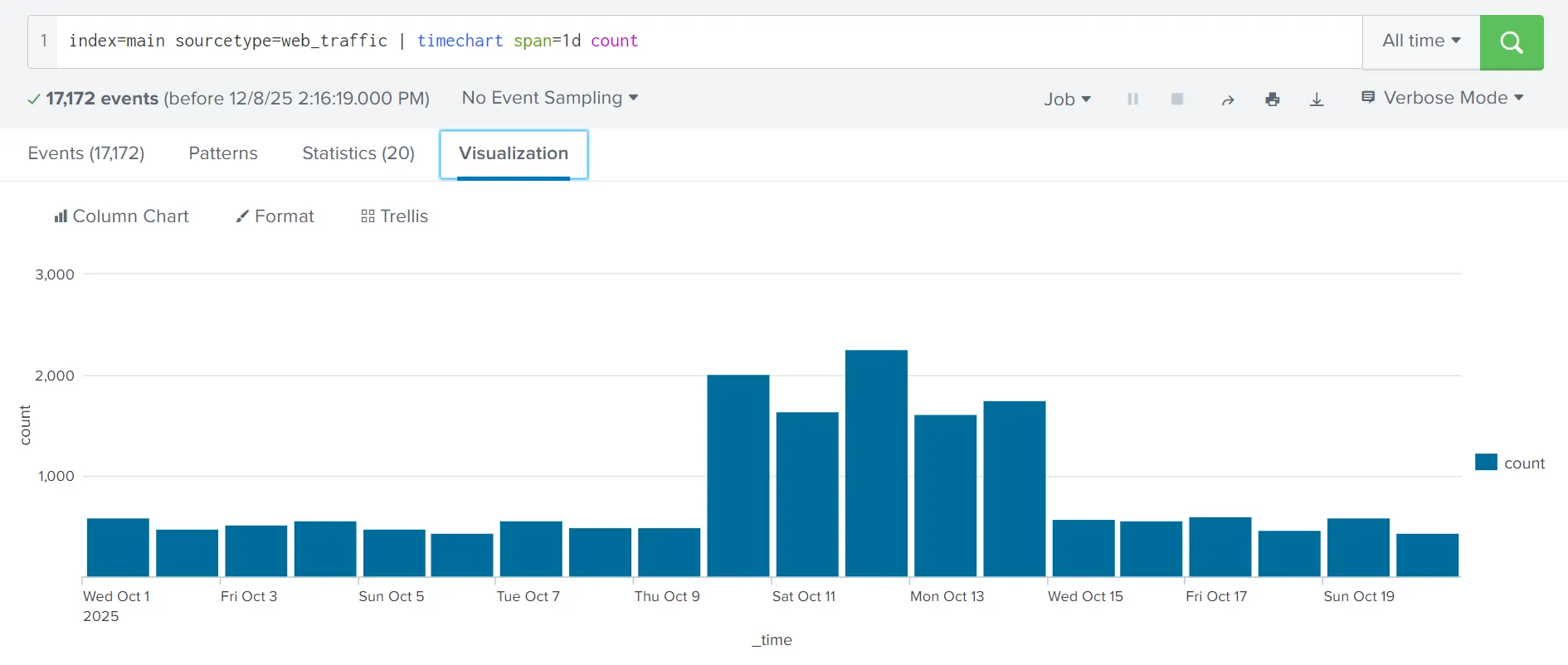
Let's chart the total event count over time, grouped by day, to determine the number of events captured per day. This will help us in identifying the day that received an abnormal number of logs.
Search query: index=main sourcetype=web_traffic | timechart span=1d count
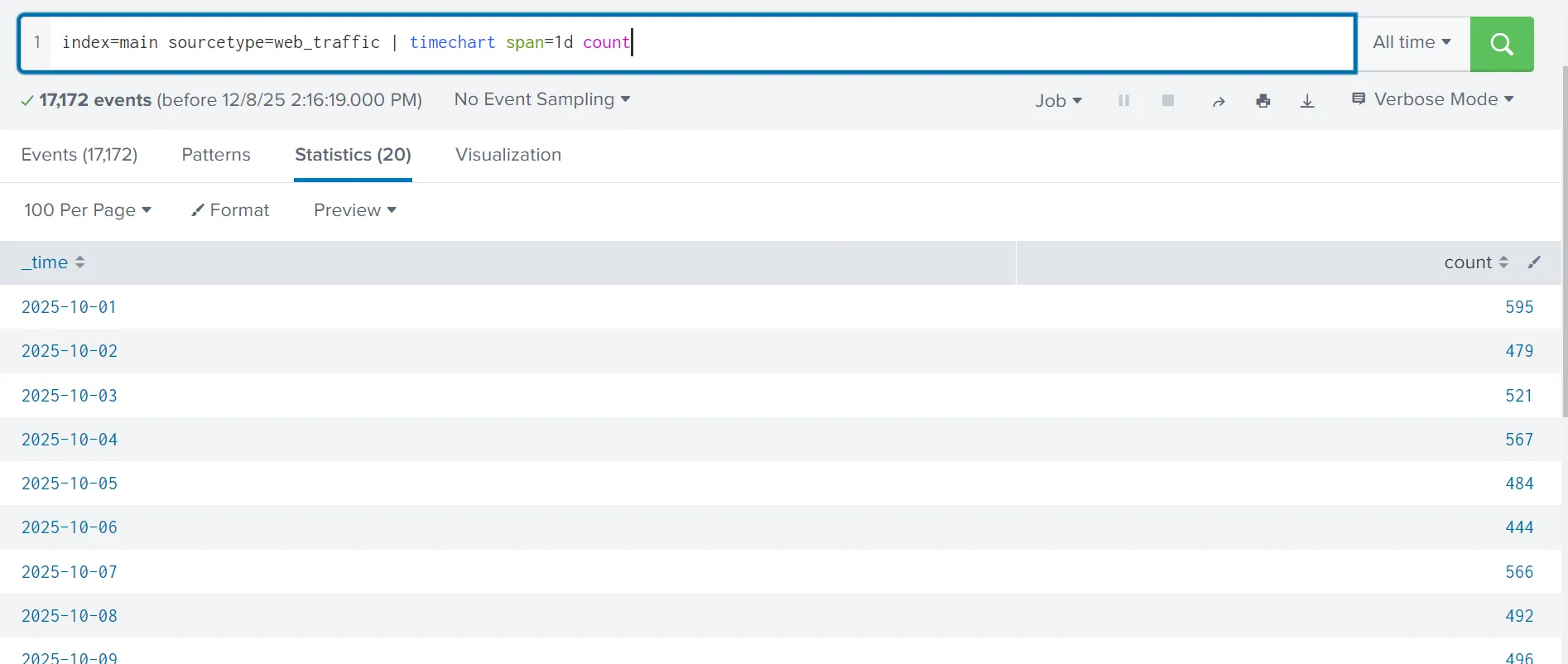
The above results are now showing the event logs captured per day. This could be interesting, as we can see some days getting a high volume of logs. We can also click on the Visualization tab to examine the graph for better representation, as shown below:
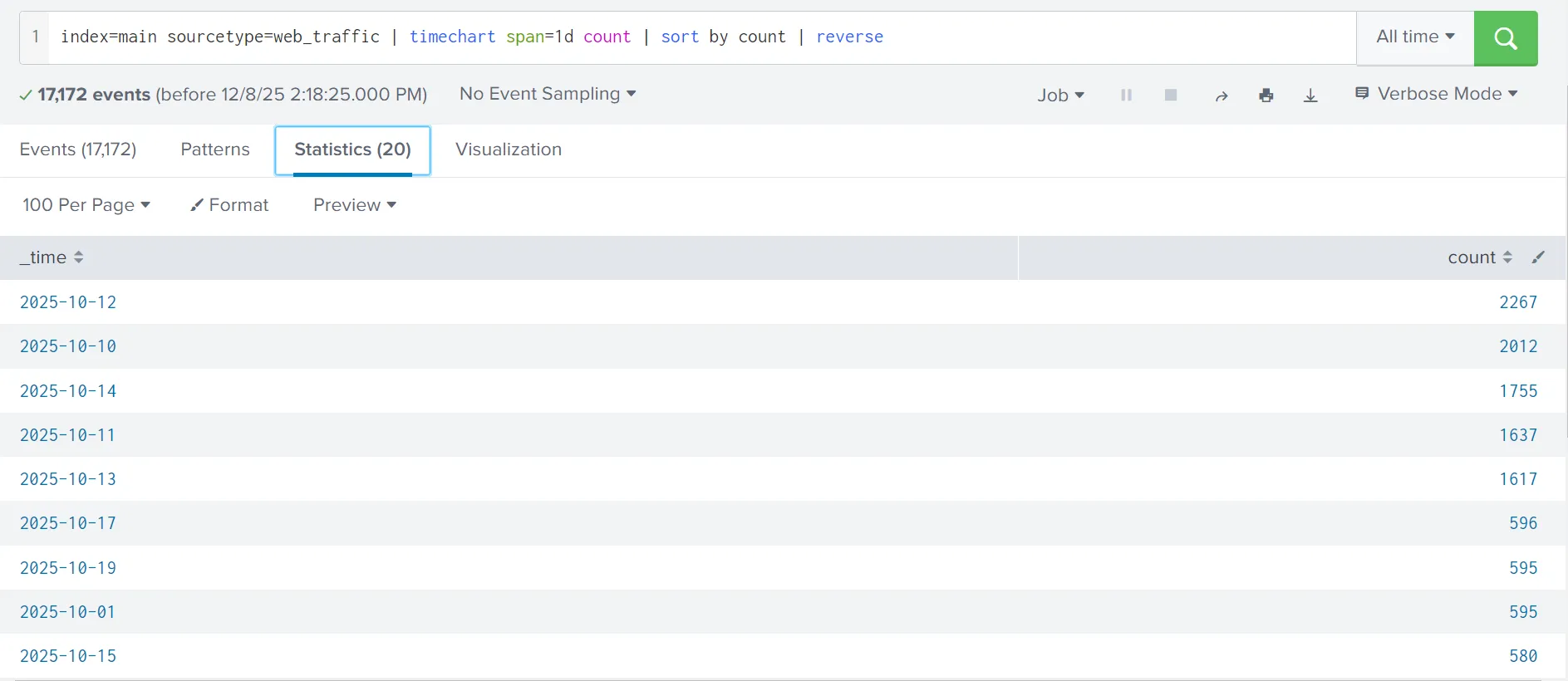
We can append the reverse function at the end to display the result in descending order, showing the day with the maximum number of events at the beginning.
Search query: index=main sourcetype=web_traffic | timechart span=1d count | sort by count | reverse
Anomaly Detection
Now that we have examined the days with the abnormal logs, using the table and the graph, let's use the same search query to examine various fields to hunt for suspicious values. We need to go back to the Events tab to continue.
User Agent
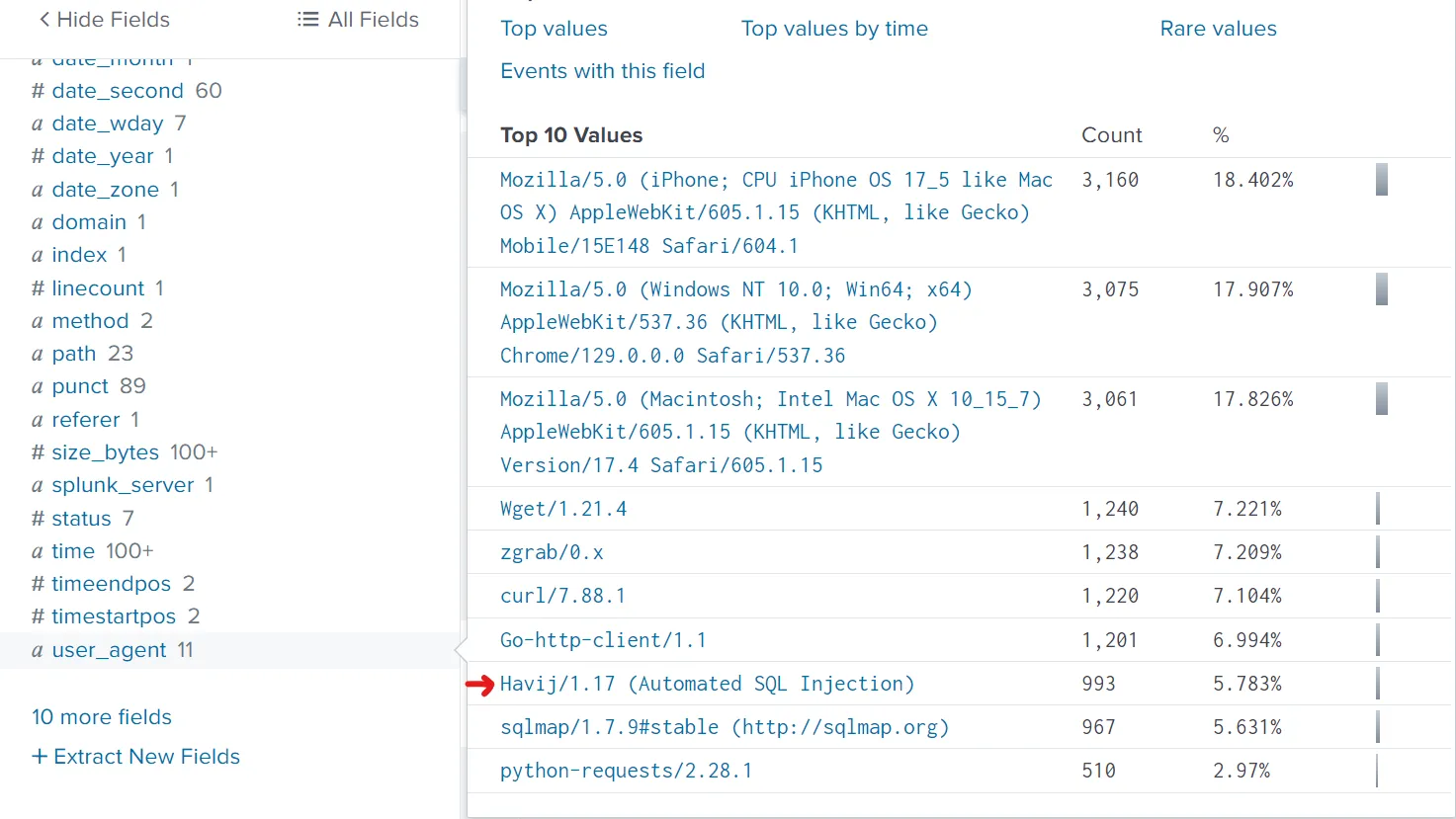
Let's click on the user_agent field in the left panel, as shown below. It will show us the details about the user agents captured so far.
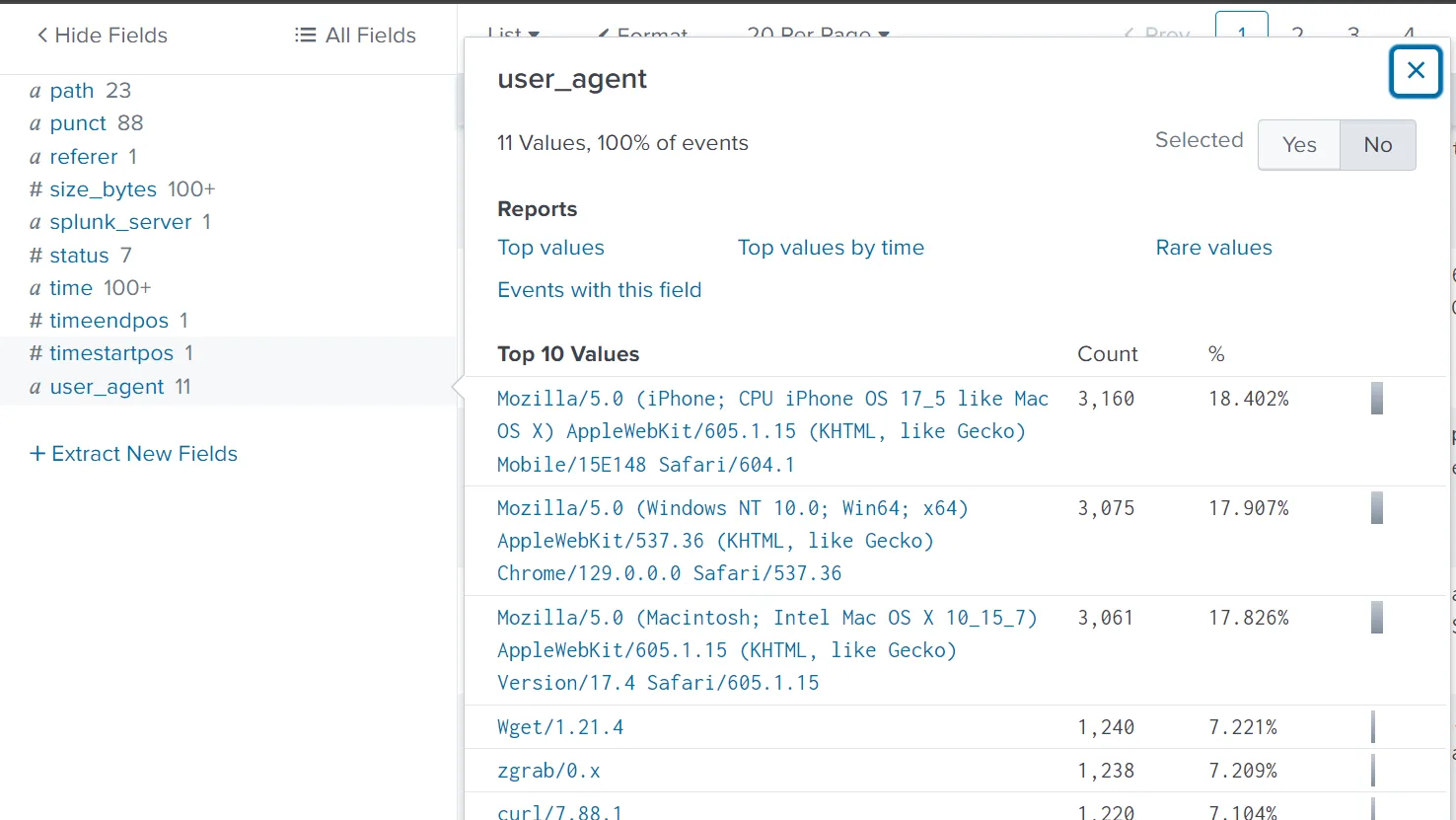
Upon closer examination, it becomes clear that, apart from legitimate user agents like Mozilla's variants, we are receiving a large number of suspicious ones, which we will need to investigate further.
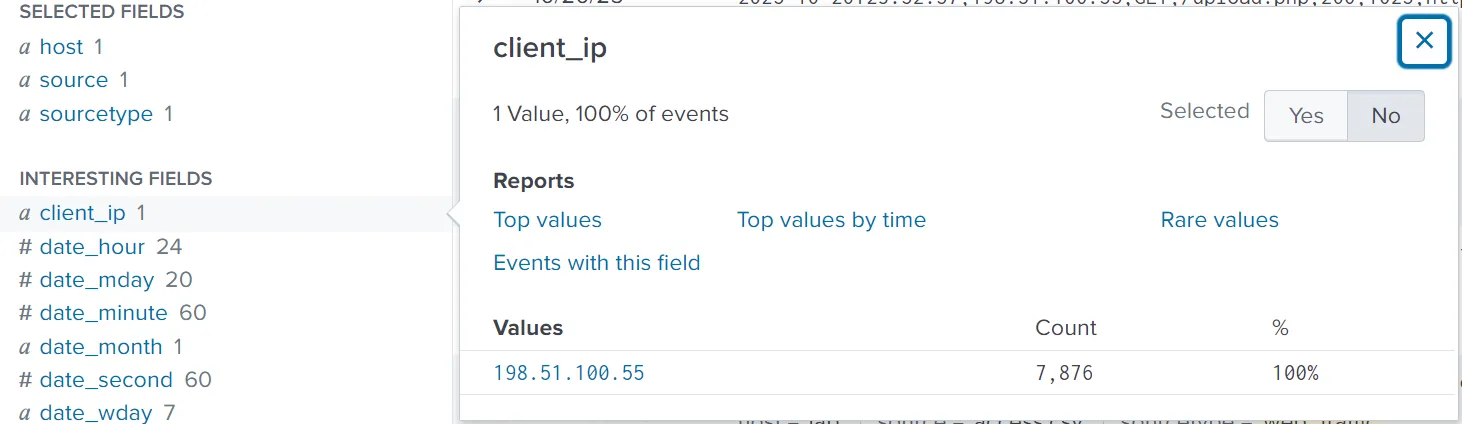
client_ip
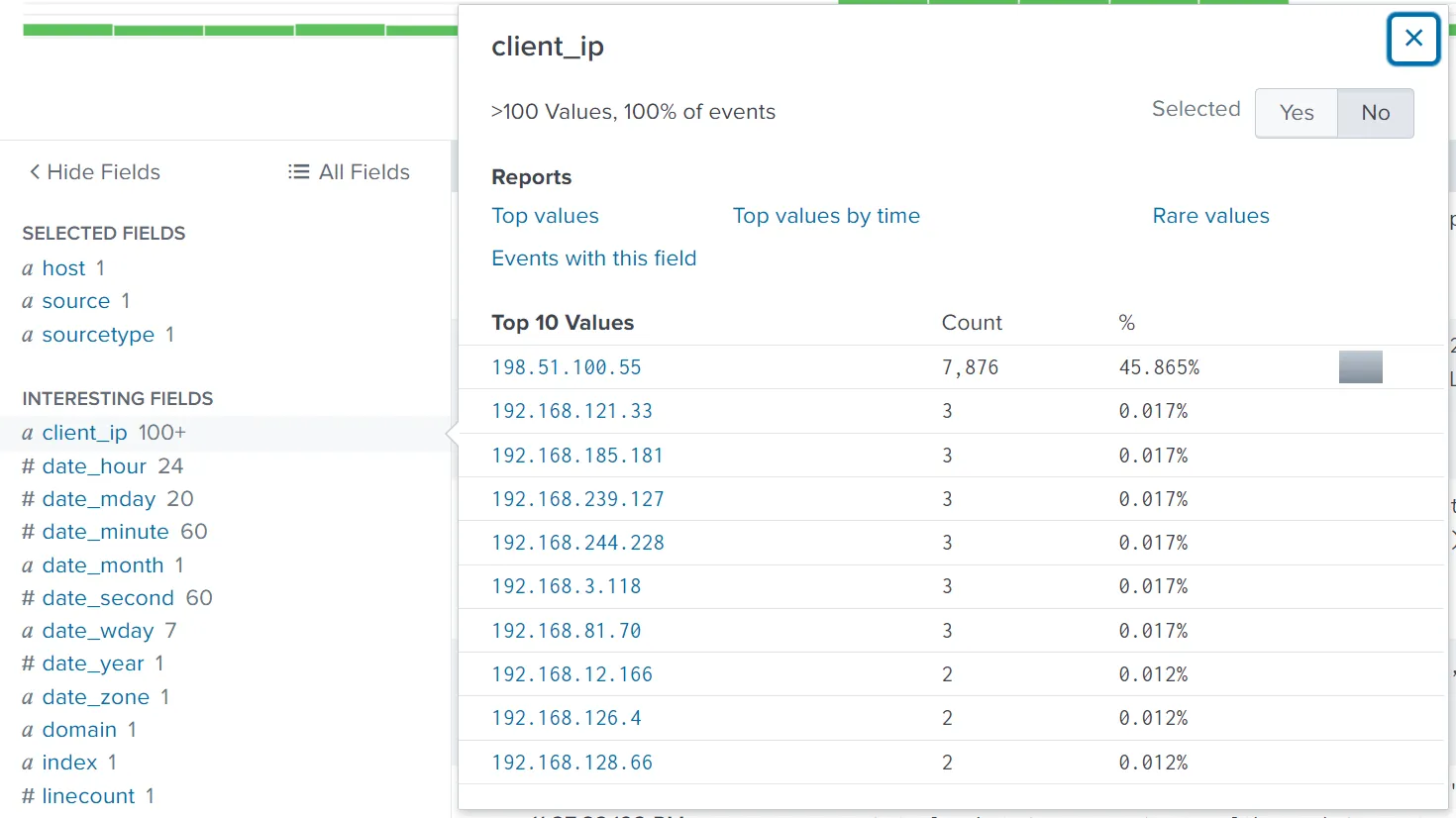
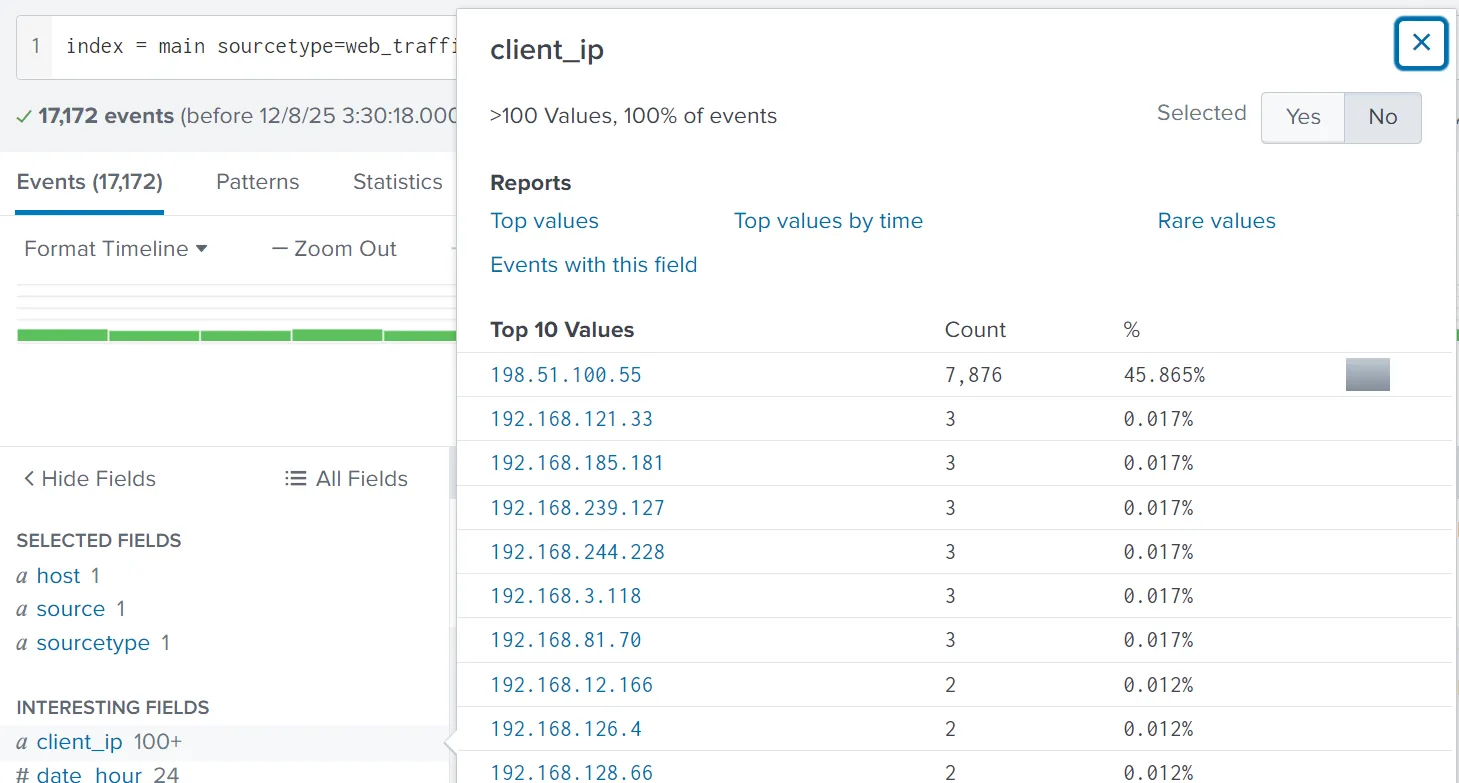
The second field we will examine is the client_ip, which contains the IP addresses of the clients accessing the web server. We can immediately see one particular IP address standing out, which we will investigate further.
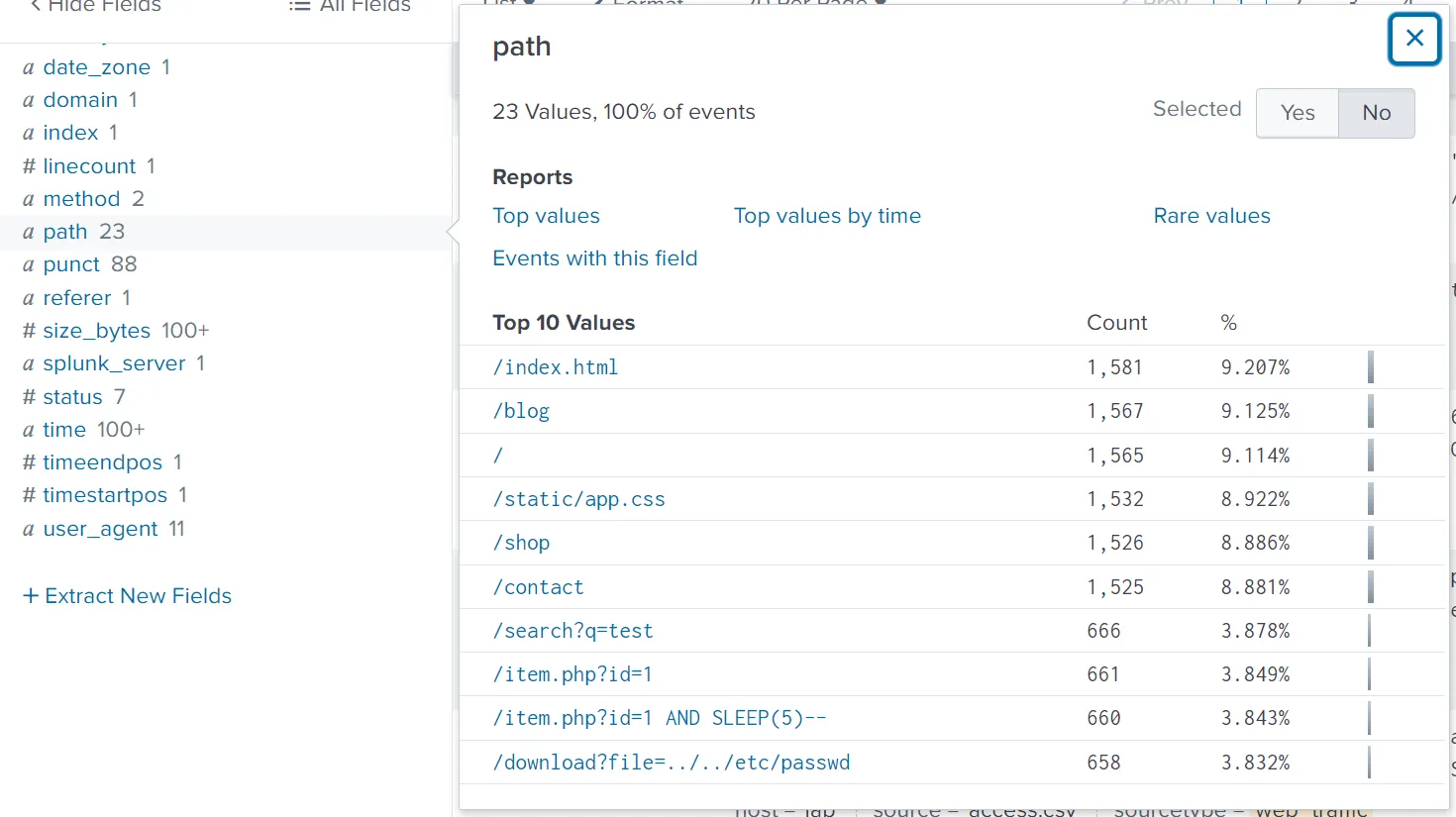
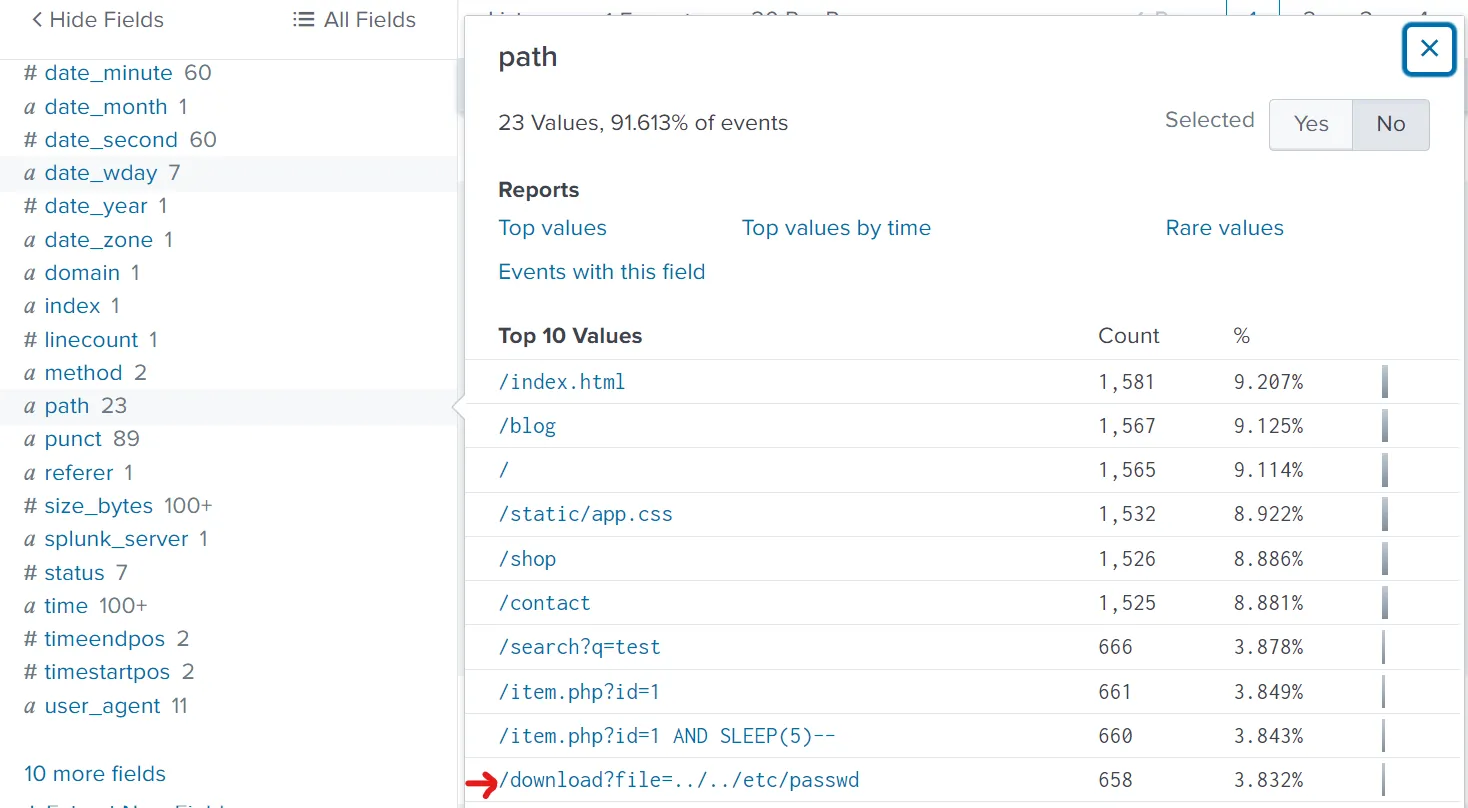
path
The third field we will examine is path, which contains the URI being requested and accessed by the client IPs. The results shown below clearly indicate some attacks worth investigating.
Filtering out Benign Values
We know King Malhare's bunnies use scripts and tools, not standard browsers. Let's filter out all standard traffic.
Let's exclude common legitimate user agents. The following query will remove legitimate user agents from the results and only show the suspicious ones, which we will further investigate.
Search query: index=main sourcetype=web_traffic user_agent!=Mozilla user_agent!=Chrome user_agent!=Safari user_agent!=Firefox
The output reveals interesting results. By clicking on the client_ip field we can see a single IP address being responsible for all the suspicious user agents. Let's note that down for further investigation and fill in the
Narrowing Down Suspicious IPs
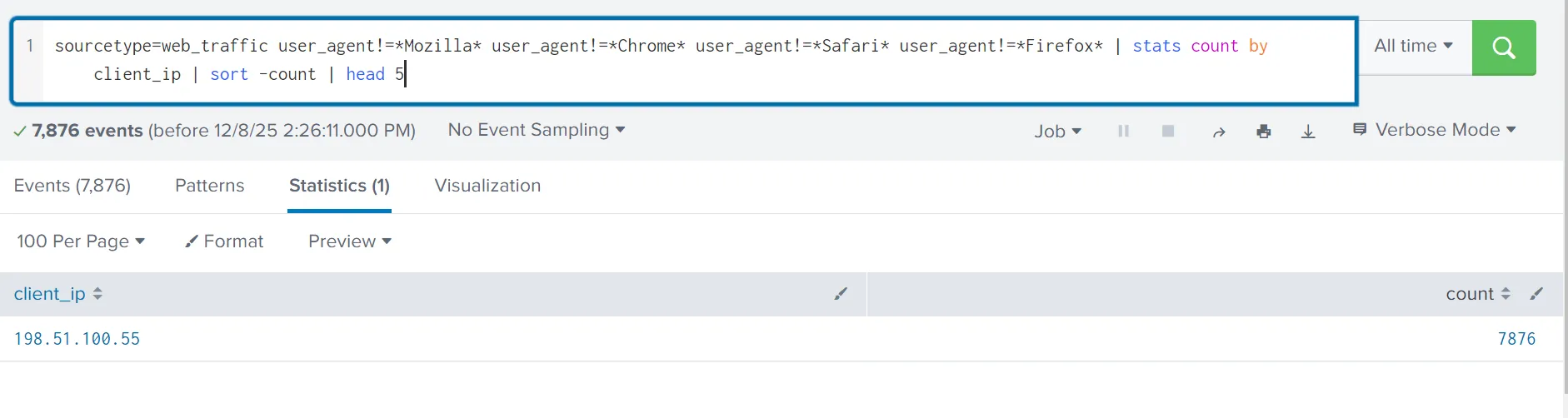
In real-world scenarios, we often encounter various IP addresses constantly attempting to attack our servers. To narrow down on the IP addresses that do not send requests from common desktop or mobile browsers, we can use the following query:
Search query: sourcetype=web_traffic user_agent!=Mozilla user_agent!=Chrome user_agent!=Safari user_agent!=Firefox | stats count by client_ip | sort -count | head 5
The result confirms the top IP used by the Bandit Bunnies. In the search query, the - in the sort -count part will sort the result by count in reverse order, it's the same as using the reverse function. Let's pick this IP address and filter out to see what the footprints of the activities captured.
Tracing the Attack Chain
We will now focus on the selected attacker IP to trace their steps chronologically, confirming the use of multiple tools and payloads. Don’t forget to replace
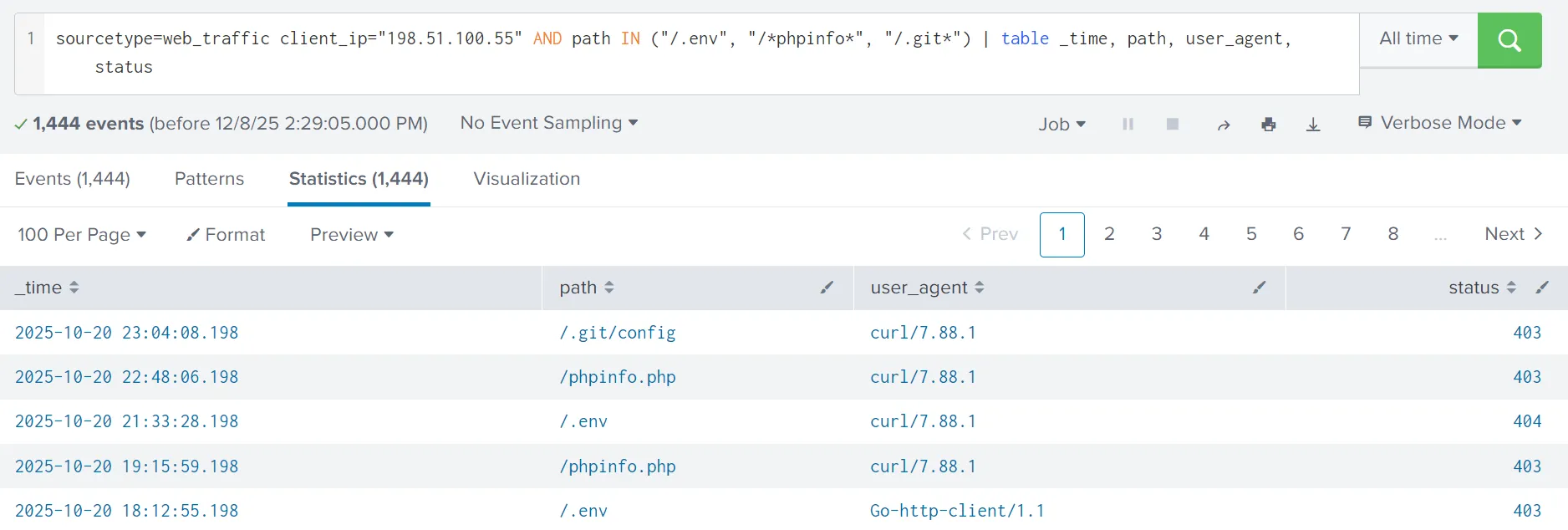
Reconnaissance (Footprinting)
We will start searching for the initial probing of exposed configuration files using the query below:
Search query: sourcetype=web_traffic client_ip="
The result confirms the attacker used low-level tools (curl, wget) and was met with 404/403/401 status codes.
Enumeration (Vulnerability Testing)
Search for common path traversal and open redirect vulnerabilities.
Search query: sourcetype=web_traffic client_ip="
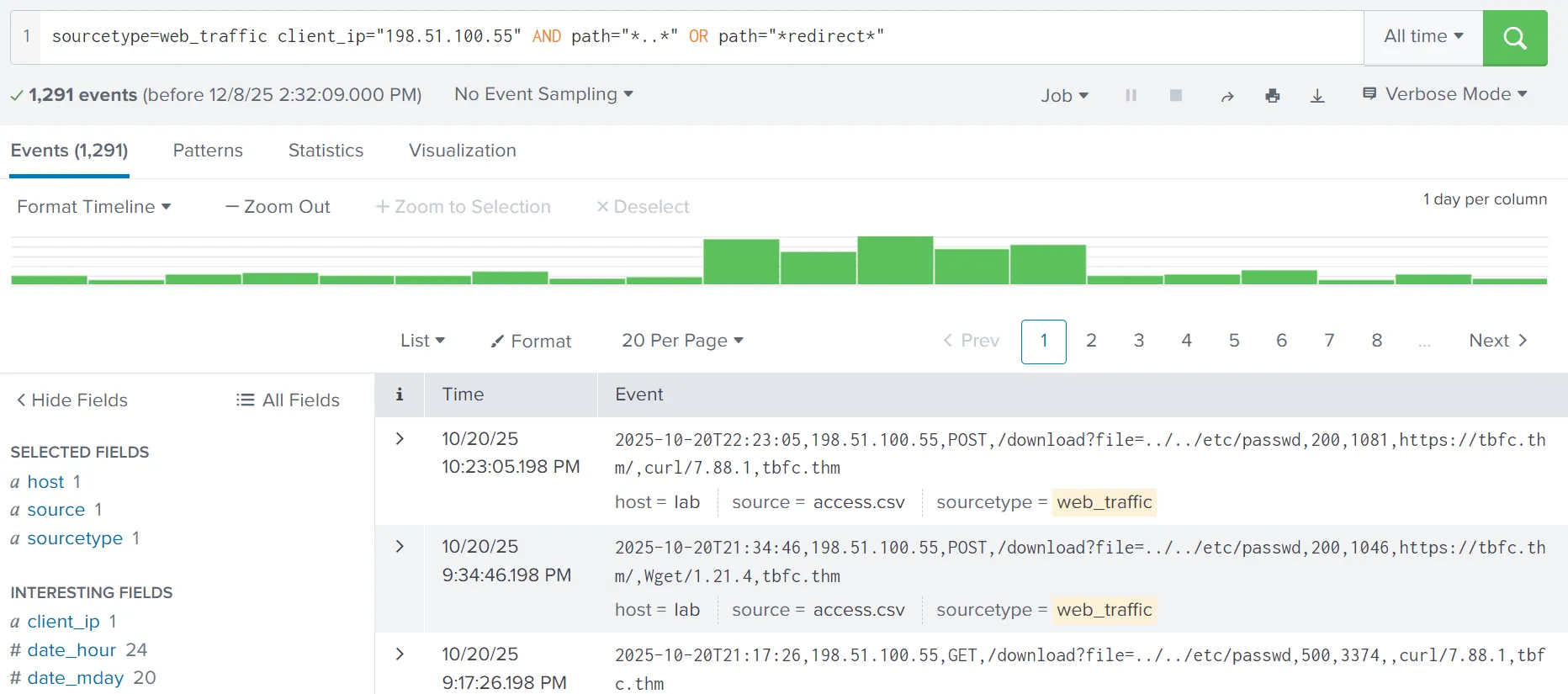
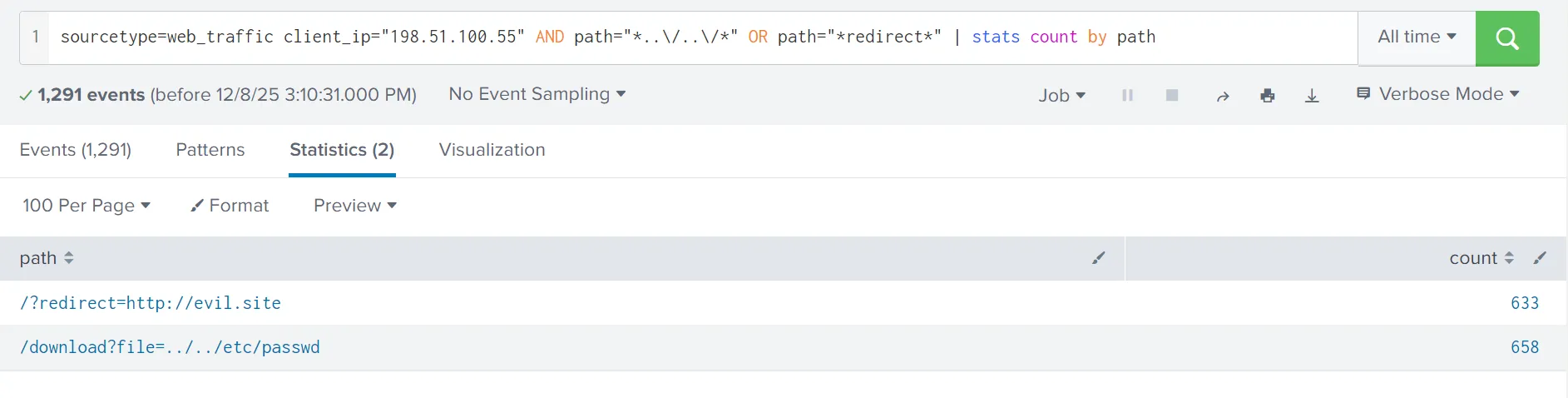
The output shows the resources the attacker is trying to access. Let's update the search query to get the count of the resources requested by the attacker. This search query is filtering on the paths that contain either ../../ or the term redirect in it, as shown below. This is done to look for footprints of path traversal attempts (../../). To, we need to update in the search query to escape the characters like ../../.
Search query: sourcetype=web_traffic client_ip="
Results reveal attempts to read system files (../../*), showing the attacker moved beyond simple scanning to active vulnerability testing.
SQL Injection Attack
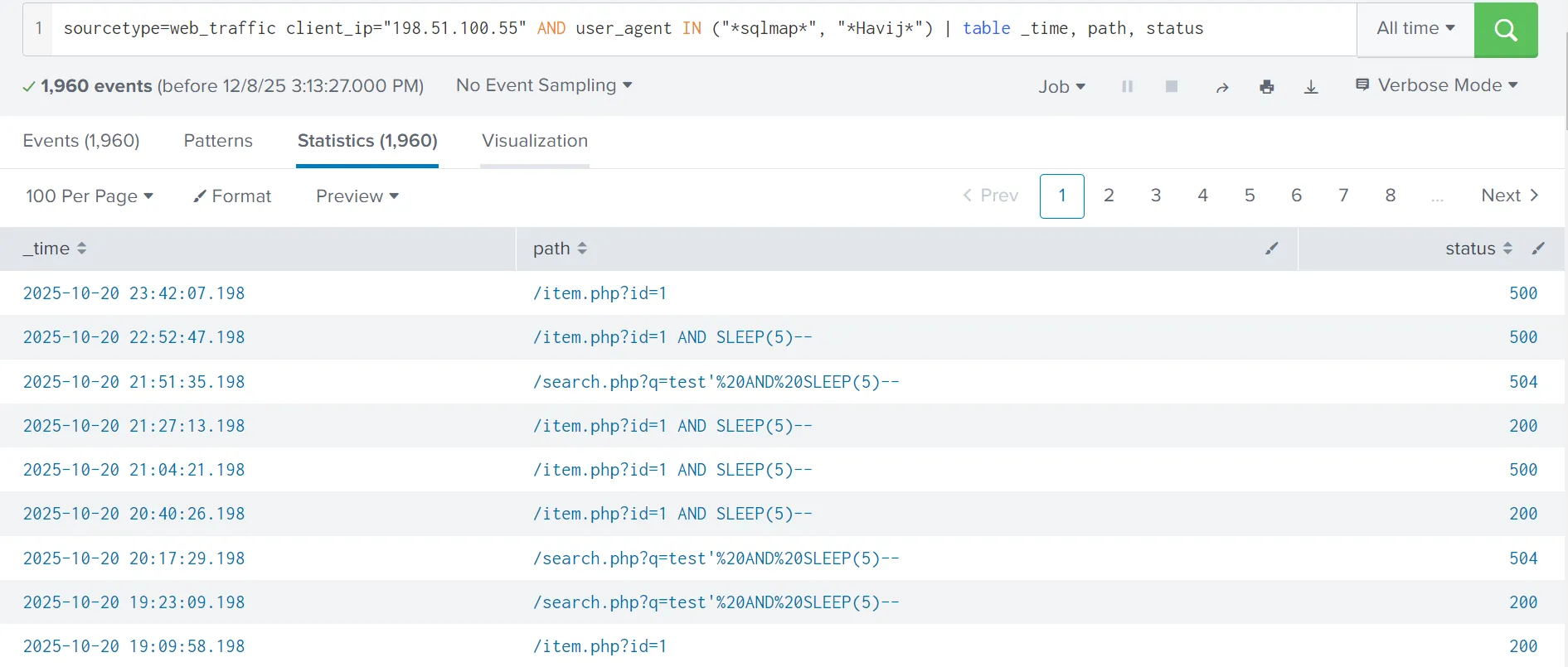
Find the automated attack tool and its payload by using the query below:
Search query: sourcetype=web_traffic client_ip="
The results confirms the use of known SQL injection and specific attack strings like SLEEP(5). A 504 status code often confirms a successful time-based SQL injection attack.
Exfiltration Attempts
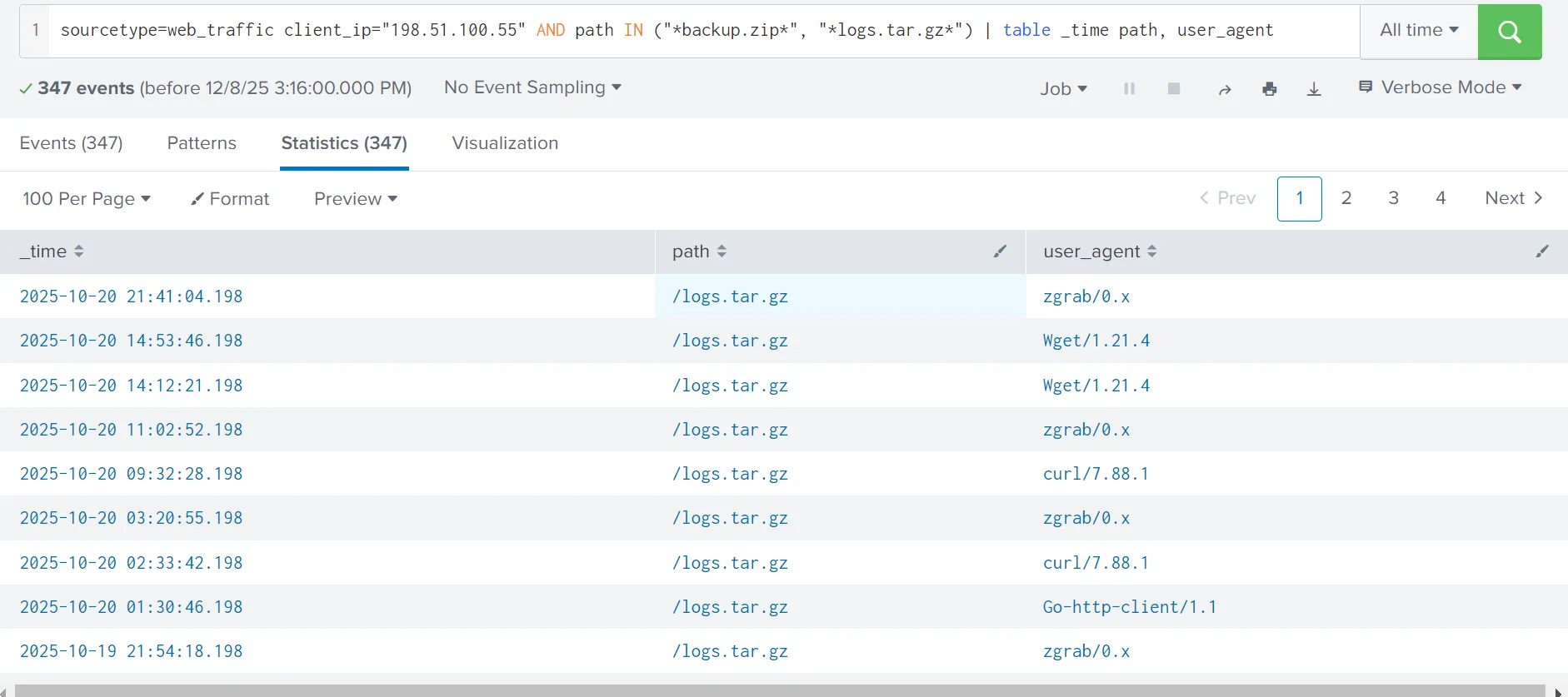
Search for attempts to download large, sensitive files (backups, logs). We can use the query below:
Search query: sourcetype=web_traffic client_ip="
The results indicate the attacker was exfiltrating large chunks of compressed log files using tools like curl, zgrab, and more. We can confirm the details about these connections in the firewall logs.
Ransomware Staging & RCE (Remote Code Execution)
Remote Code Execution (RCE) is a vulnerability that allows an attacker to run arbitrary code on a remote system. If exploited successfully, it often leads to full system compromise.
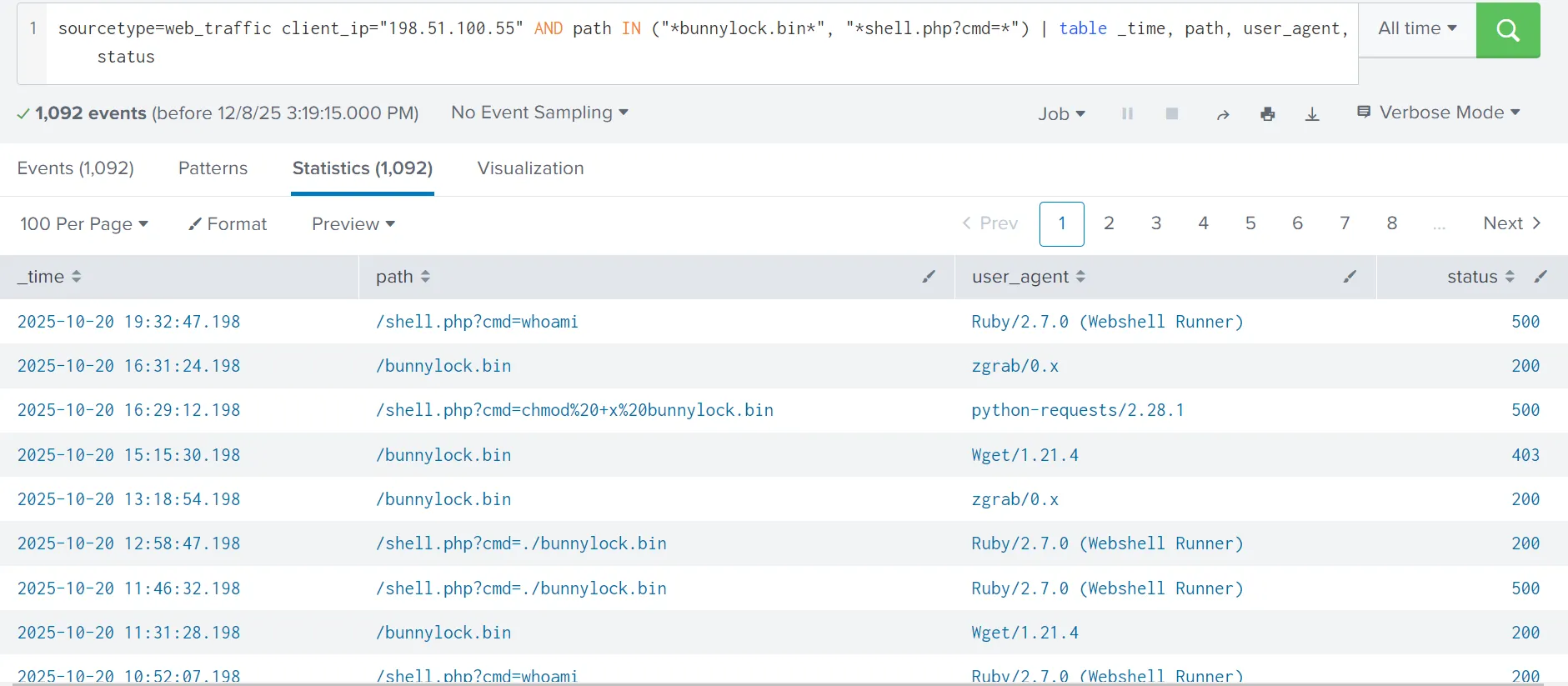
Requests for sensitive archives like /logs.tar.gz and /config indicate the attacker is gathering data for double-extortion. In the logs, we identified some requests related to bunnylock and shell.php. Let's use the following query to see what those search queries are about.
Search query: sourcetype=web_traffic client_ip="
The results clearly confirm a successful webshell. The attacker has gained full control over the web server and is also able to run commands. This type of attack is called Remote code Execution (RCE). The execution of /shell.php?cmd=./bunnylock.bin indicates a ransomware like program executed on the server.
Correlate Outbound C2 Communication
Command and Control (C2) Infrastructure are a set of programs used to communicate with a victim machine. This is comparable to a reverse shell, but is generally more advanced and often communicate via common network protocols, like HTTP, HTTPS and DNS.
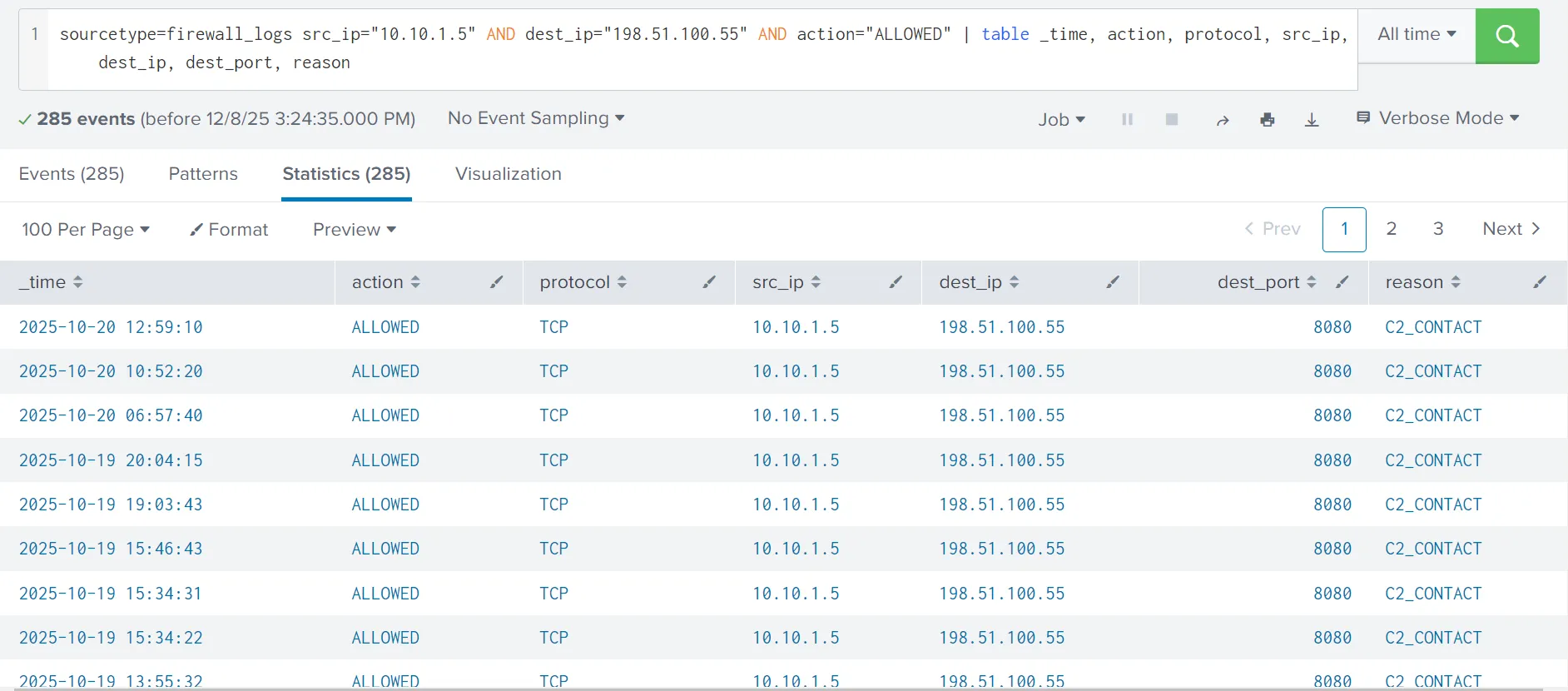
We pivot the search to the firewall_logs using the Compromised Server IP (10.10.1.5) as the source and the attacker IP as the destination.
Search query: sourcetype=firewall_logs src_ip="10.10.1.5" AND dest_ip="
This query proves the server immediately established an outbound connection to the attacker's C2 IP on the suspicious DEST_PORT. The ACTION=ALLOWED and REASON=C2_CONTACT fields confirm the malware communication channel was active.
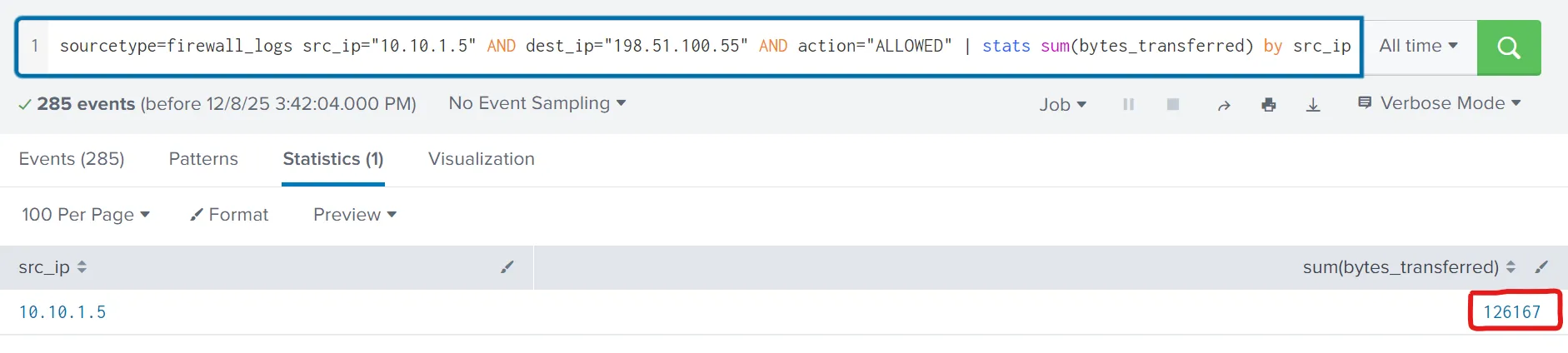
Volume of Data Exfiltrated
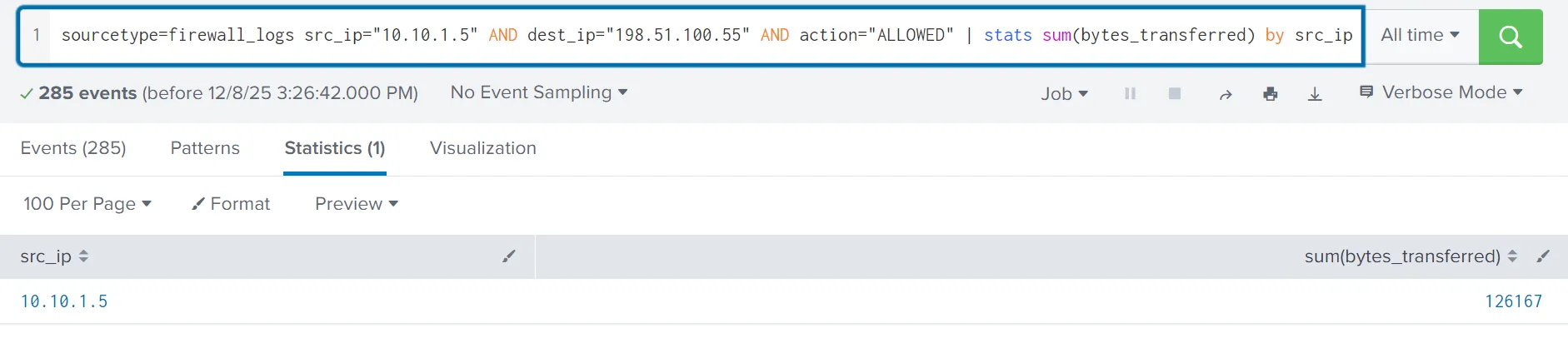
We can also use the sum function to calculate the sum of the bytes transferred, using the bytes_transferred field, as shown below:
Search Query: sourcetype=firewall_logs src_ip="10.10.1.5" AND dest_ip="
The results show a huge volume of data transferred from the compromised webserver to C2 server.
Conclusion
- Identity found: The attacker was identified via the highest volume of malicious web traffic originating from the external IP.
- Intrusion vector: The attack followed a clear progression in the web logs (sourcetype=web_traffic).
- Reconnaissance: Probes were initiated via cURL/Wget, looking for configuration files (/.env) and testing path traversal vulnerabilities.
- Exploitation: The use of SQLmap user agents and specific payloads (SLEEP(5)) confirmed the successful exploitation phase.
- Payload delivery: The Action on Objective was established by the final successful execution of the command cmd=./bunnylock.bin via the webshell.
- C2 confirmation: The pivot to the firewall logs (sourcetype=firewall_logs) proved the post-exploitation activity. The internal, compromised server (SRC_IP: 10.10.1.5) established an outbound C2 connection to the attacker's IP.
Answer the questions below
What is the attacker IP found attacking and compromising the web server?
198.51.100.55
Which day was the peak traffic in the logs? (Format: YYYY-MM-DD)
2025-10-12

What is the count of Havij user_agent events found in the logs?
993
How many path traversal attempts to access sensitive files on the server were observed?
658
Examine the firewall logs. How many bytes were transferred to the C2 server IP from the compromised web server?
126167
Day 4: AI in Security - old sAInt nick
Unleash the power of AI by exploring it's uses within cyber security.
Learning Objectives
- How AI can be used as an assistant in cyber security for a variety of roles, domains and tasks
- Using an AI assistant to solve various tasks within cyber security
- Some of the considerations, particularly in cyber security, surrounding the use of AI
Artificial Intelligence is technology that enables computers and machines to simulate human behaviour, like learning and reasoning.
AI in Cyber Security
| Features of AI | Cyber Security Relevance |
|---|---|
| Processing large amounts of data | Analysing vast data from multiple types of sources. For example, system and network logs together. |
| Behaviour analysis | Tracking normal behaviour and activities over a period of time and flagging anything that is out of the ordinary. |
| Generative AI | Summarising or providing context behind a series of events. |
Defensive Security
AI agents are being used in blue teaming to speed up detection, investigation, and response, making them quicker and more dependable. Acting like automated assistants, these agents continuously process telemetry (logs, network flows, endpoint signals) and add context to alerts. We are also witnessing the integration of AI into vendor appliances—such as AI-assisted firewalling and intrusion detection systems. Beyond just detecting threats, AI can also assist in automating responses - even in real-time.
Offensive Security
AI can be a powerful tool in a penetration tester's workflow for reconnaissance and information gathering, from OSINT to analysing noisy scanner outputs and mapping attack surfaces. This allows the pentester to spend more time on the crucial tasks that require a human touch.
OSINT: pen source intelligence (OSINT) is the act of gathering and analyzing publicly available data for intelligence purposes.
Software
AI is used as a SAST/DAST scanner. These scanners audit and analyse written code and applications for potential vulnerabilities.
SAST: Static Application Security Testing for scanning code DAST: Dynamic Application Security Testing scans running aplications for vulnerabilities
AI agents can be great at identifying vulnerabilities, but are not quite as effective at writing secure code.
Considerations of AI In Cyber Security
- Use of AI in activities like offensive penetration testing -- You do not want to explain to a client that their services and websites are down because an AI has caused a race condition or overwhelmed their systems.
- We must think carefully about the data AI learns from, how transparent and fair its decisions are, and how reliable it remains when the unexpected occurs.
- Managing challenges such as keeping data private, securing AI models, and informing users properly requires careful consideration.
Practical
How AI can be used across three areas of cyber security:
- Red Team: Discover how AI can be used to generate scripts to exploit vulnerabilities.
- Blue Team: See how AI can be used to analyse web logs of an attack that has occurred.
- Software: Harness the power of AI to review source code and identify how vulnerabilities are introduces (i.e., analyse source code for vulnerabilities).
Day 5: IDOR - Santa’s Little IDOR
Learn about IDOR while helping pentest the TrypresentMe website.
Learning Objectives
- Understand the concept of authentication and authorization
- Learn how to spot potential opportunities for Insecure Direct Object References (IDORs)
- Exploit IDOR to perform horizontal privilege escalation
- Learn how to turn IDOR into SDOR (Secure Direct Object Reference)
Insecure direct object references (IDOR) are a type of access control vulnerability that arises when an application uses user-supplied input to access objects directly. The term IDOR was popularized by its appearance in the OWASP 2007 Top Ten.
Why IDOR Is So Easy to Miss
Have you ever seen a link that looks like this:
https://awesome.website.thm/TrackPackage?packageID=1001?
When you see a link like this, have you ever wondered what would happen if you simply changed the packageID to 11 or 12? In its simplest form, this can be a potential case for IDOR.
IDOR stands for Insecure Direct Object Reference and is a type of access control vulnerability. Web applications often use references to determine what data to return when you make a request. However, if the web server doesn't perform checks to ensure you are allowed to view that data before sending it, it can lead to serious sensitive information disclosure.
If the user wants to know the status of their package and makes a web request, the simplest method is to allow the user to supply their packageID. We recover data from the database using the simplest SQL query of:
SELECT person, address, status FROM Packages WHERE packageID = value;
However, since packageID is a sequential number, it becomes pretty obvious to guess the packageIDs of other customers, and since the web application isn't verifying that the person making the request is the same person as the one who owns the package, an IDOR vulnerability appears, allowing attackers to recover the details for packages belonging to other users. Even worse is when a feature like this doesn't require a user to authenticate, then there would be no way to even tell who is making the request!
The full term, Insecure Direct Object Reference, sounds fancy, but it doesn’t really describe what’s going wrong. The “Direct Object Reference” part just means that a system uses an ID (like /user/1) to point to something. That’s not the problem. The real issue is that the system doesn’t check whether the person making the request is allowed to access it.
A lot of people try to “fix” IDORs by hiding or encoding IDs. For example, changing /user/1 to /user/ea21f09b2. That might make it look harder to guess, but if the server still isn’t checking permissions, it’s just as insecure. The vulnerability isn’t about how the object is referenced, it’s about missing authorization checks.
The real issue is missing authorization checks on the server.
That’s why we can call it an Authorization Bypass instead. It explains exactly what’s happening: someone is bypassing the rules that decide who can see or change something. Whether the ID is a number, a hash, or a random string, the risk stays the same if the server doesn’t verify access.
Identity Defines Our Reach
To understand the root cause of IDOR, it is important to understand the basic principles of authentication and authorization:
- Authentication: The process by which you verify who you are. For example, supplying your username and password.
- Authorization: The process by which the web application verifies your permissions. For example, are you allowed to visit the admin page of a web application, or are you allowed to make a payment using a specific account?
You may think that authentication only happens once when you supply your username and password, but that is actually not the case! After providing your credentials, you receive a cookie or a token, called session information. Every subsequent request you make to the application includes this session information, which is verified by the application. This initial verification process is still authentication and happens for each request. This is why websites will often redirect you back to the login page. It means your session information has expired, and thus, you need to reauthenticate with your credentials to receive new session information.
Authorization cannot happen before authentication. If the application doesn't know who you are, it cannot verify what permissions your user has.
Privilege Escalation Types
- Vertical privilege escalation: This refers to privilege escalation where you gain access to more features. For example, you may be a normal user on the application, but can perform actions that should be restricted for an administrator.
- Horizontal privilege escalation: This refers to privilege escalation where you use a feature you are authorized to use, but gain access to data that you are not allowed to access. For example, you should only be able to see your accounts, not someone else's accounts.
IDOR is usually a form of horizontal privilege escalation. You are allowed to make use of the track package functionality. But you should be restricted to only performing that tracking action for packages you own.
The simplest form of IDOR is simply changing the user_id to something else means we can see other users' data. Some IDORs might be slightly more hidden.
Encoding isn't the only thing that can be used to hide potential IDOR vulnerabilities. Sometimes the values may look like a hash, such as MD5 or SHA1.
If we understand what value was used to generate the hash, we can perform an IDOR attack by simply replicating the hashing function. Using something like a hash identifier can help you quickly understand what hashing algorithm is being used and can often tell you what data was hashed.
UUID: Universal Unique Identifier is a 128-bit value used to uniquely identify an object, entity or information within a particular system or knowledge database.
The best way to stop IDOR is to make sure the server checks who is asking for the data every time. It's not enough to hide or change the ID number; the system must confirm that the logged-in user is authorized to see or change that information.
Don't rely on tricks like Base64 or hashing the IDs; those can still be guessed or decoded. Instead, keep all the real permission checks on the server. Whenever a request comes in, check: "Does this user own or have permission to view this item?"
Use random or hard-to-guess IDs for public links, but remember that random IDs alone don't make your app safe. Always test your app by trying to open another user's data and making sure it's blocked.
Finally, record and monitor failed access attempts; they can be early signs of someone trying to exploit an IDOR.
🔐 Key Takeaway:
IDOR vulnerabilities occur when applications trust user-controlled identifiers without verifying ownership or permissions on the server.
Answer the questions below
What does IDOR stand for?
Insecure Direct Object Reference
What type of privilege escalation are most IDOR cases?
Horizontal
Exploiting the IDOR found in the view_accounts parameter, what is the user_id of the parent that has 10 children?
15