Advent of Cyber 2025 Day 6-10
Every year, TryHackMe hosts an Advent of Cyber event where they release a new room every day leading up to Christmas. This post will contain my writeups for Advent of Cyber 2025 day 6-10.
Day 6: Malware Analysis - Egg-xecutable
Discover some common tooling for malware analysis within a sandbox environment.
Learning Objectives
- The principles of malware analysis
- An introduction to sandboxes
- Static vs. dynamic analysis
- Tools of the trade: PeStudio, ProcMon, Regshot
Principles of Malware Analysis
Malware analysis is the process of examining a malicious file to understand its functionality, operation, and methods for defence against it. By analysing a malicious file or application, we can see exactly how it operates, and therefore, know how to prevent it. Instead of fearing malware, we can take a proactive approach by translating technical findings into practical defensive measures and understanding how the malware fits into an attacker's techniques.
There are two main branches of malware analysis: static and dynamic. Static analysis focuses on inspecting a file without executing it, whereas dynamic analysis involves execution.
Static Analysis: The process of analyzing malware without executing it, but in a controlled environment.
Dynamic Analysis: The process of analyzing malware by running it in a controlled environment like a sandbox.
Sandboxes
In cyber security, sandboxes are used to execute potentially dangerous code. These sandboxes are safe, isolated environments where potentially malicious applications can perform their actions without risking sensitive data or impacting other systems.
The use of sandboxes is part of the golden rule in malware analysis: never run dangerous applications on devices you care about.
Most of the time, sandboxes present themselves as virtual machines. Virtual machines are a popular choice for sandboxing because you can control how the system operates and benefit from features such as snapshotting, which allows you to create and restore the machine to various stages of its status.
Interactive: Static Analysis
We use static analysis to gather information about a sample without executing it and digging deep.
Static analysis can be a quick and effective way to understand how the sample may operate, as well as how it can be identified.
Some of the information that can be gathered from static analysis has been included in the table below:
| Information | Explanation | Example |
|---|---|---|
| Checksums | These checksums are used within cyber security to track and catalogue files and executables. For example, you can Google the checksum to see if this has been identified before. | a93f7e8c4d21b19f2e12f09a5c33e48a |
| Strings | "Strings" are sequences of readable characters within an executable. This could be, for example, IP addresses, URLs, commands, or even passwords! | 138.62.51.186 |
| Imports | "Imports" are a list of libraries and functions that the application depends upon. For example, rather than building everything from scratch, applications will use operating system functions and libraries to interact with the OS. These are useful, especially in Windows, as they allow you to see how the application interacts with the system. | CreateFileW This library is used to create a file on a Windows system. |
| Resources | "Resources" contain data such as the icon that is displayed to the user. This is useful to examine, especially since malware might use a Word document icon to trick the user. Additionally, malware itself has been known to hide in this section! | N/A |
Attackers hide how a file really works using techniques like obfuscation so that antivirus software and security analysts cannot easily understand or detect it.
Demonstrating PeStudio
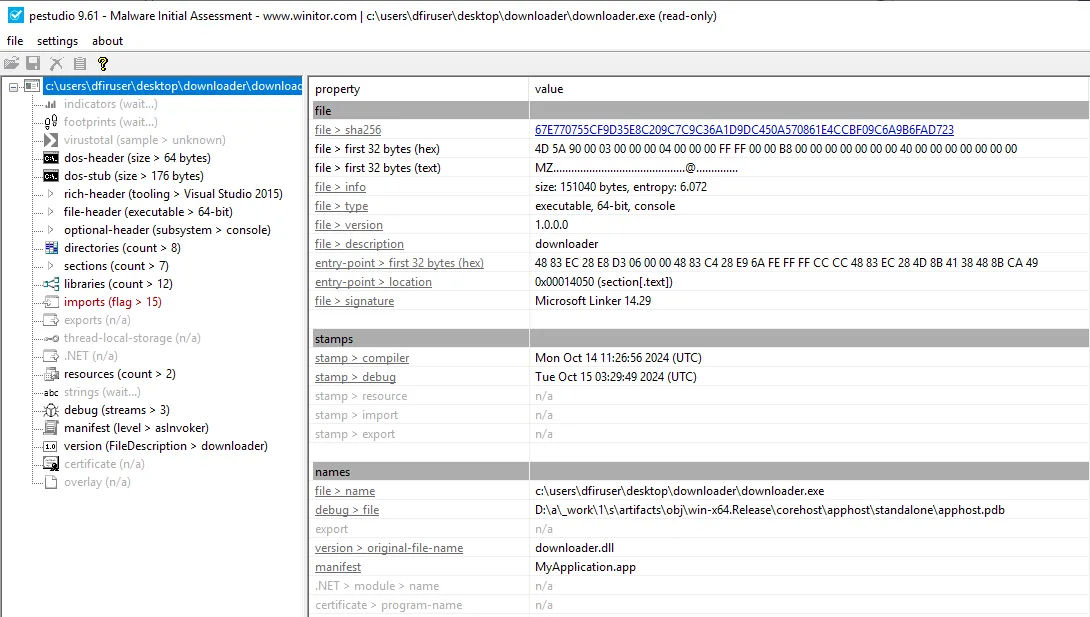
First, we will use PeStudio to gather information about the executable.
- Launch PeStudio
- Load the executable into PeStudio
- Click on the "indicators" tab in the dropdown
- Look for the SHA256Sum
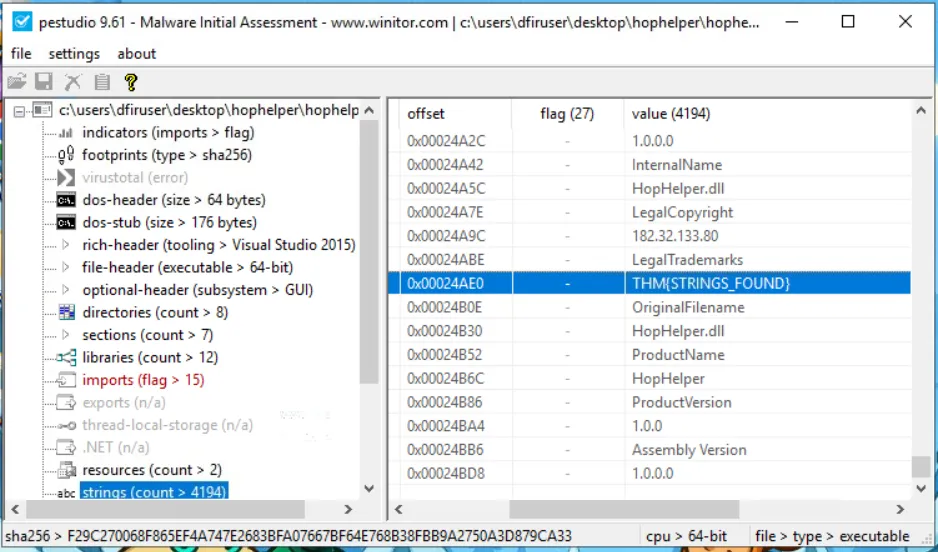
Next, we will proceed with reviewing the "Strings" of the executable. In the context of malware analysis, strings are sequences of readable characters present within an executable. This could be, for example, IP addresses, URLs, commands, or even passwords! As a malware analyst, it's great to have a look at these, as these could reveal the attacker's command infrastructure, which we can use for our defences.
Interactive: Dynamic Analysis
Dynamic analysis involves executing the malicious sample to identify its behaviours and how it interacts with the operating system.
Regshot
Regshot is a widely used utility, especially when analysing malware on Windows. It works by creating two "snapshots" of the registry—one before the malware is run and another afterwards. The results are then compared to identify any changes. Malware aims to establish persistence, meaning it seeks to run as soon as the device is switched on. A common technique for malware is to add a Run key into the registry, which is frequently used to specify which applications are automatically executed when the device is powered on.
ProcMon
Proccess Monitor (ProcMon) is used to monitor and investigate how processes are interacting with the Windows operating system. It is a powerful tool that allows us to see exactly what a process is doing. For example, reading and writing registry keys, searching for files, or creating network connections. Process Monitor will automatically start capturing events of various processes on the system. After allowing a minute to pass, ensuring the sample has fully executed, we will now stop capturing. To stop capturing more events, click on the Play button in the toolbar of Process Monitor. Click on the Filter button, and then Filter within the dropdown to apply some filters.
We can create some filters to remove some of the noise that we don't care about. we can apply a filter like:
- Apply the Process Name filter
- Set the condition to is
- Put in the name of the process we wish to see within the text area
- Press the Add button to apply this filter
- And finally click OK to save.
Once done, returning to the main Process Monitor window, we can already see the filter has worked. Now it is much easier to investigate how the process is interacting with the operating system.
Here are some Operations that may be of interest to us:
- RegOpenKey
- CreateFile
- TCP Connect
- TCP Recieve
However, as you can see, there is still a lot of information. We can further apply filters to look for specific things that we want to investigate, such as these aforementioned Operations.
To do so, return to the Filter heading and create the filter we want to apply. For example, we can filter by Operations. Let's do so below, filtering for any TCP Operation:
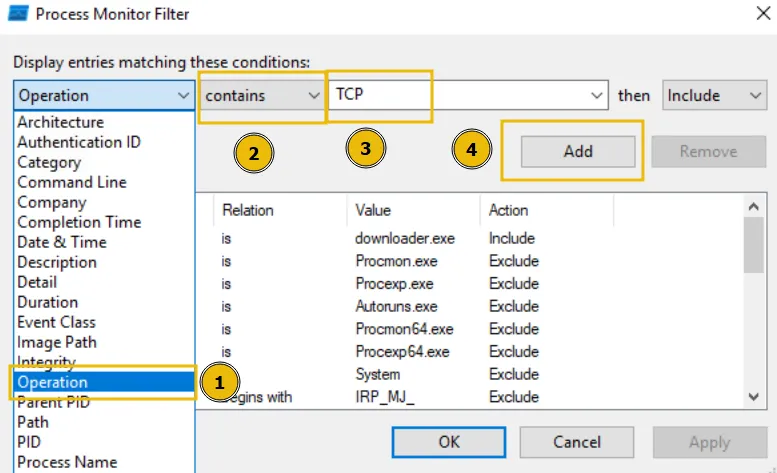
We will now see all Operations that include TCP. Remember, you can remove the filters you've previously applied by pressing the filter in the Filter list, and pressing Remove:
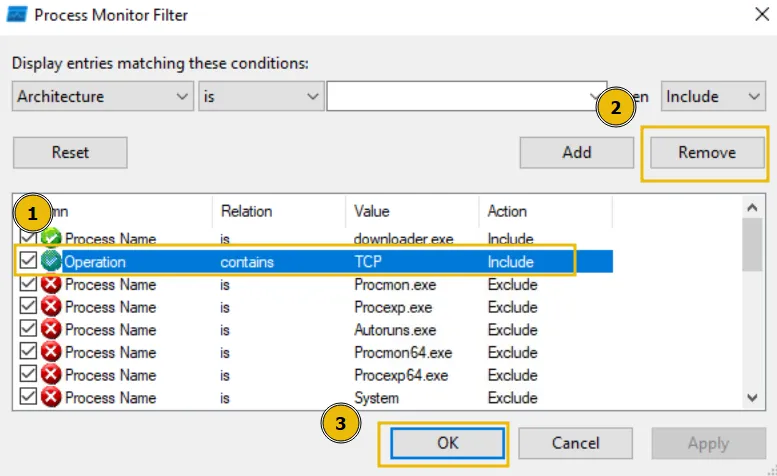
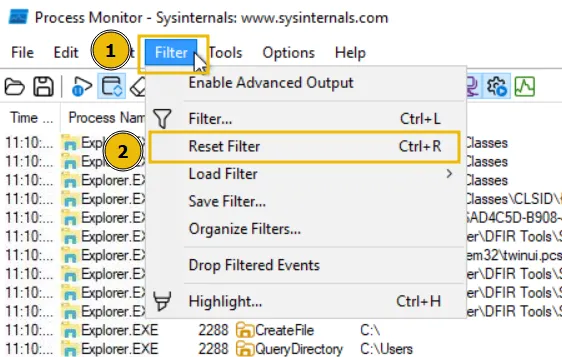
Or, alternatively, if you wish to start over, you can simply press the Reset Filter option when clicking on the Filter heading.
Day 7: Network Discovery - Scan-ta Clause
Discover how to scan network ports and uncover what is hidden behind them.
Learning Objectives
- Learn the basics of network service discovery with Nmap
- Learn core network protocols and concepts along the way
- Apply your knowledge to find a way back into the server
Discovering Exposed Services
When the access to a server is lost, but at least it's still active, and its IP address is known to us, we can counterattack and find our way back.
- Know your target. In our case, it is the tbfc-devqa01 server with the 10.67.179.101 IP address.
- Scan the IP for open ports, especially common ones like 22 for SSH and 80 for HTTP.
- Explore what's behind the open ports, maybe it's a vulnerable web server running on port 80.
- Exploit the exposed service, find a way in, and kick out the bad bunnies from the QA server.
The Simplest Port Scan
There are many tools you can use to scan for open ports, from preinstalled Netcat on Linux and PowerShell on Windows, to specialized, powerful tools like Nmap and Naabu.
We will be using Nmap here.
Open a new command line terminal and run the following command:
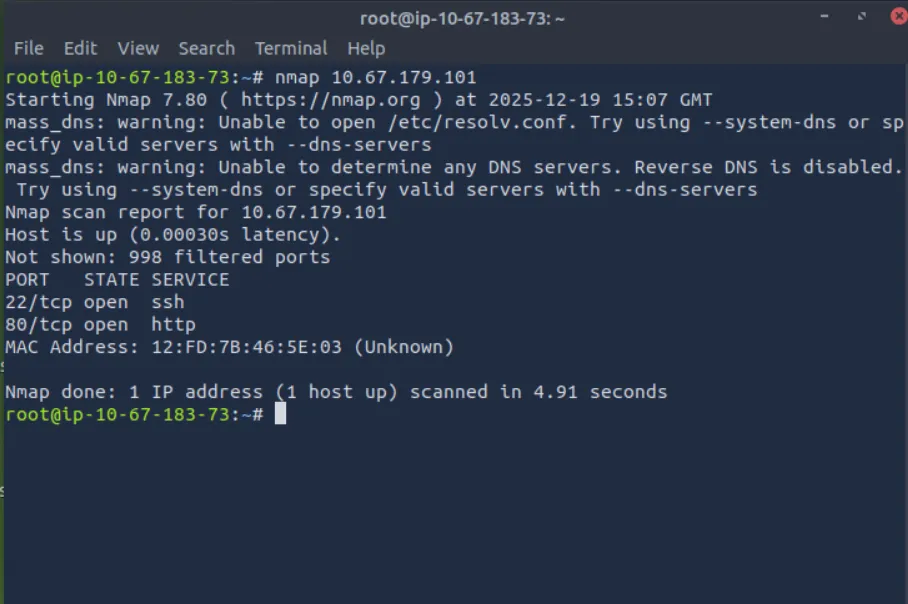
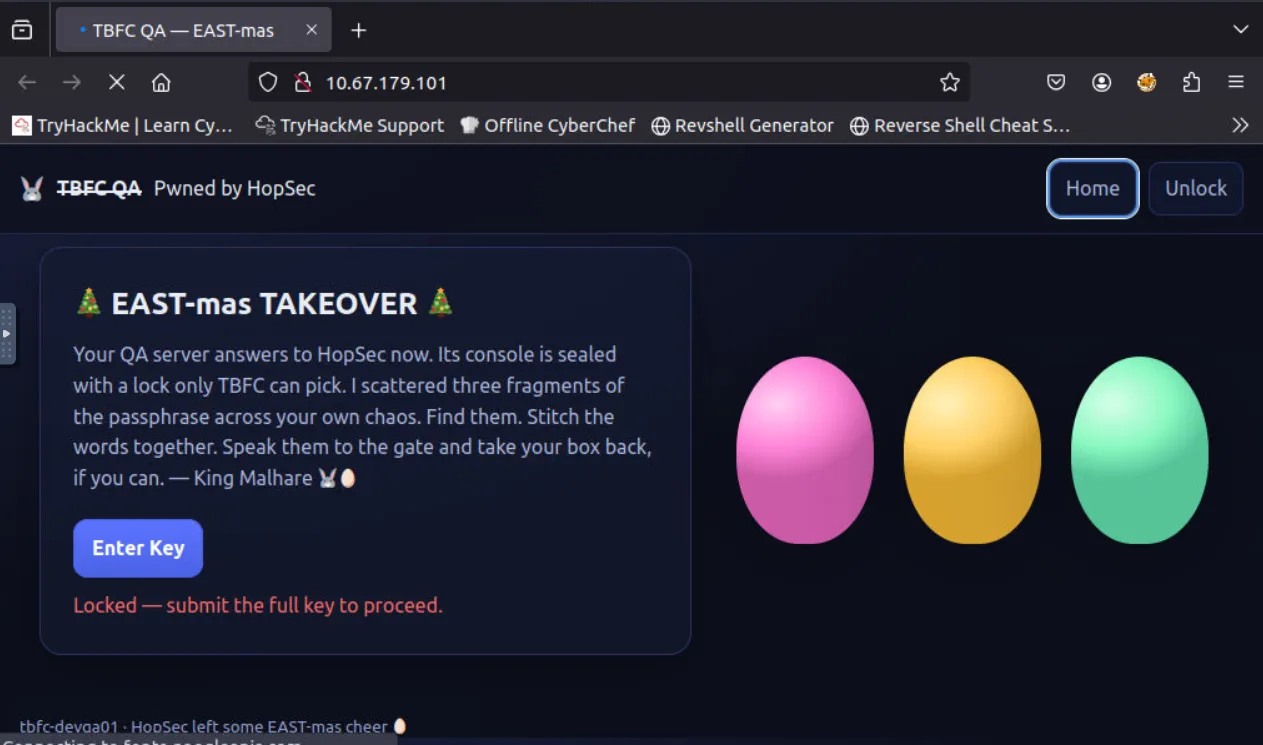
The command scanned the top 1000 most commonly used ports and reported if any services were running there. The only results you received are an opened SSH port for remote machine access and a HTTP port for a website. This means you can now access the server via SSH (if you know the password), or open the website by visiting http://10.67.179.101 from within the AttackBox.
HTTP: Hypertext Transfer Protocol (HTTP) is the protocol that specifies how a web browser and a web server communicate. Your web browser requests content from the TryHackMe web server using the HTTP protocol as you go through this room.
SSH: Secure Shell (SSH) refers to a cryptographic network protocol used in secure communication between devices. SSH encrypts data using cryptographic algorithms, such as Advanced Encryption System (AES) and is often used when logging in remotely to a computer or server.
Scanning Whole Range
It seems like the website is defaced by bad bunnies, and we don't know the key to enter the admin panel! But worry not. We scanned just 1000 ports, but there are actually 65535 ports where other services can hide! Now let's add the -p- argument to scan all ports, and --script=banner to see what's likely behind the port.
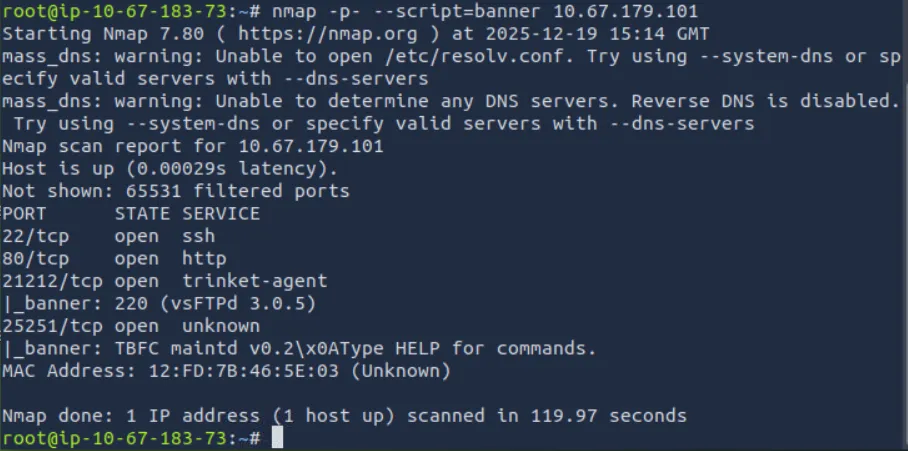
Looks like you found a running FTP server and some custom TBFC application. Even though FTP runs on port 21 by default, it's possible to change the port to any other one, such as 21212. Let's try accessing the FTP in anonymous mode with the ftp command and see if we can find our way in!
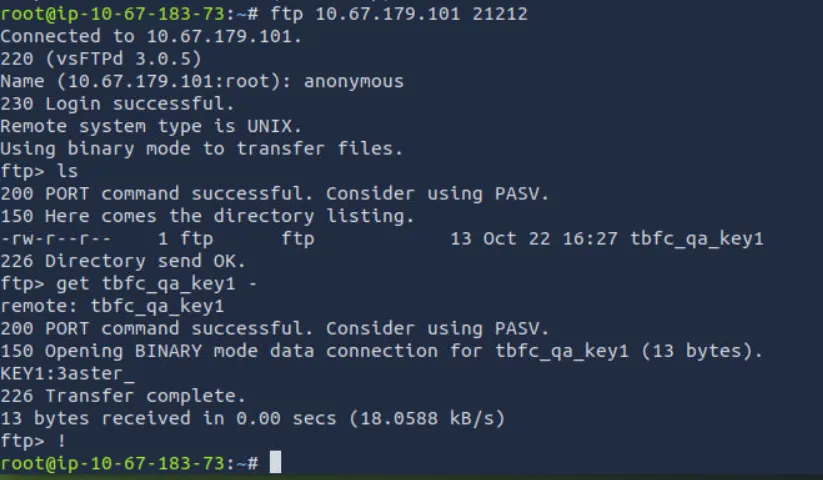
FTP: File Transfer Protocol (FTP) is a protocol designed to help the efficient transfer of files between different and even non-compatible systems. It supports two modes for file transfer: binary and ASCII (text).
Port Scan Modes
There is nothing more we can see on the FTP server, so let's move on to the custom TBFC app on port 25251. Since it is not a well-known service like HTTP or FTP, your web browser or FTP client won't know how to access it. Luckily, you can always use Netcat (nc), a universal tool to interact with network services.
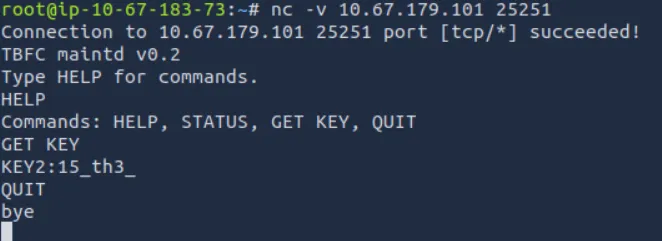
Once you received the key, press CTRL+C to exit the Netcat client.
TCP and UDP Ports
Till now, we have scanned only TCP ports, but there are also 65535 ports for UDP, another transport protocol. And there is a chance HopSec secrets are hiding there, too! You can switch to UDP scan by specifying the -sU flag.
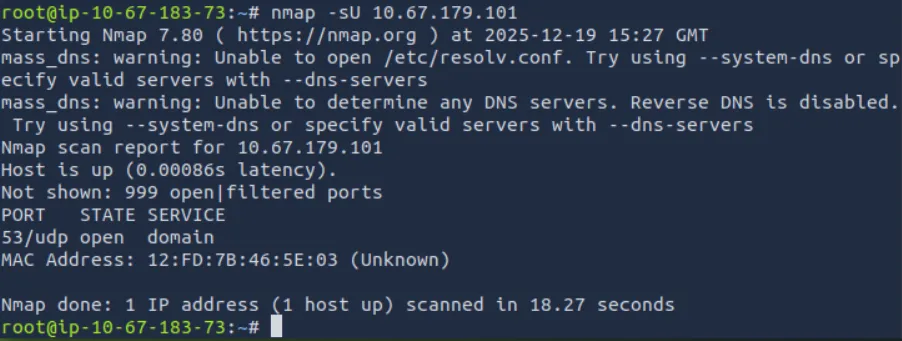
After a minute you should see an open port 53 associated with DNS - a protocol that drives the modern web by connecting domains to IPs, and many more. Let's ask the DNS server if it knows the key by using dig - a command to perform advanced DNS queries.

On-Host Service Discovery
Now that you know all three keys to the tbfc-devqa01 QA server, it's time to call your TBFC teammates and kick out the bad bunnies.
But first, log in to the server's admin panel by visiting http://10.67.179.101 from within the AttackBox and access the secret admin console by submitting the combined keys.
Listing Listening Ports
Once you have access to the console, there is no need to scan the ports, as you can simply ask the OS to list its open ports, also called listening ports. You can do it by running ss -tunlp (or netstat on older systems) inside the Secret Admin Console of the web app. In the output, you may see exactly the same services you scanned before listening on 0.0.0.0, but also some listening on 127.0.0.1 (available only from the host itself)
With root permissions, you can also view the process column. However, for now, let's focus on the 3306 port, which is the default MySQL database port. Usually databases require a password for remote clients, but allow unauthenticated logins from localhost. Since you are already inside the host, let's see the database content by using the mysql program.
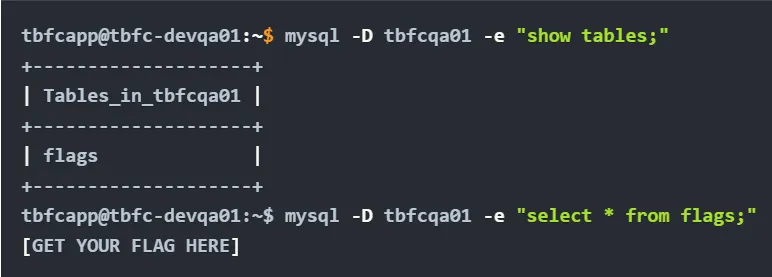
We have finally exposed all bunnies' secrets and regained full access to the QA server.
Answer the Questions Below
Which port was the MySQL database running on?
3306
Day 8: Prompt Injection - Sched-yule conflict
Learn to identify and exploit weaknesses in autonomous AI agents.
Learning Objectives
- Understand how agentic AI works
- Recognize security risks from agent tools
- Exploit an AI agent
Artificial intelligence (AI) is a branch of computer science that focuses on building systems that can think and act in ways similar to humans — such as learning from data, making decisions, and solving problems.
AI has evolved a lot over time. Earlier systems, like basic chatbots, could only respond to specific inputs. Today, AI can work more independently. Some AI systems can plan tasks, make decisions, and carry out multiple steps on their own without constant human input. These systems are called agentic AI or autonomous agents.
While this makes AI more powerful and useful, it also introduces new risks. Because AI can act on its own, we must be more careful about how it is controlled, monitored, and secured.
Large Language Models (LLMs)
Large Language Models (LLMs) are the core technology behind many modern AI systems. They are trained on huge amounts of text and code, which helps them generate human-like answers, summaries, programs, and stories.
However, LLMs have clear limitations. They can only work inside a text interface and cannot directly take actions in the real world. Their knowledge is limited to the data they were trained on, so they may miss recent events or sometimes make up incorrect information. They also struggle with tasks that require real-world interaction.
Key characteristics of LLMs include:
- Text generation: They predict the next word step by step to form responses.
- Stored knowledge: They contain a broad range of information learned during training.
- Instruction following: They can be fine-tuned to better follow user prompts.
Because LLMs rely on patterns in text, they can be manipulated. Attackers may use techniques like prompt injection, jailbreaking, or data poisoning to make the model behave in unsafe or unintended ways.
These limitations are why AI is moving toward agentic AI, where LLMs are combined with tools and decision-making abilities so they can plan, take actions, and interact with the outside world more independently.
Agentic AI
Agentic AI refers to AI systems that can act on their own to achieve a goal, instead of only following fixed instructions.
Unlike basic AI that responds to one prompt at a time, agentic AI can work with minimal supervision and make decisions as it goes.
An agentic AI can:
- Plan ahead: Break a goal into multiple steps and decide the order to complete them.
- Take actions: Use tools, call APIs, run commands, or handle files to get work done.
- Observe and adapt: Check results, learn from failures, and change its strategy when new information appears.
In simple terms, agentic AI doesn’t just answer — it thinks, acts, and adjusts to reach a goal on its own.
ReAct Prompting & Context-Awareness
Agentic AI can do complex tasks because it uses a reasoning method called Chain-of-Thought (CoT).
Chain-of-Thought (CoT) means the AI thinks step by step instead of jumping straight to an answer. This helps it solve problems that need logic, math, or careful reasoning.
However, CoT has a limitation:
- It works only inside the AI’s own knowledge.
- It cannot check facts in real time.
- It can make mistakes, repeat errors, or invent information (hallucinate).
ReAct: Reason + Act
ReAct improves on Chain-of-Thought by allowing the AI to both think and act.
Instead of just reasoning internally, a ReAct-based AI:
- Thinks about what to do
- Takes an action (like searching the web, calling an API, or running code)
- Observes the result
- Updates its plan based on what it learned
This happens in a loop, similar to how humans work.
How ReAct Works
A ReAct-enabled AI alternates between:
- Reasoning: Explaining its current thinking
- Action: Performing a real-world operation (searching, querying data, executing tools)
Why ReAct Is Important
ReAct allows the AI to:
- Adjust its plan when something fails
- Use up-to-date or external information
- Reduce fake or incorrect answers
- Combine thinking and doing in a smarter way
In simple terms, ReAct helps AI behave more like a human:
Think → Act → Observe → Improve → Repeat
Tool Use/User Space
Modern AI models can use tools to do things they cannot do on their own, like searching the web, calling APIs, or working with files. This feature is often called function calling.
How Tool Use Works
1. Developers define tools
- Tools are described to the AI using a structured format (like JSON).
- Each tool has: -- A name -- A description -- A list of inputs it accepts
This teaches the AI what tools exist and how to use them.
2. The AI decides when to use a tool
- If a user asks something that needs real-time or external data (e.g., recent news),
- The AI understands it should use a tool instead of guessing.
3. The AI calls the tool
- The AI sends a structured request to the tool with the required input.
- Example: searching the web for recent information.
4. The external system responds
- The tool (like Google or Bing search) runs outside the AI.
- It returns real-world results.
5. The AI uses the results
- The AI reads the tool’s output.
- It combines this information with its reasoning.
- Then it gives the user a clear, natural-language answer.
Day 9: Passwords - A Cracking Christmas
Learn how to crack password-based encrypted files.
Learning Objectives
-
How password-based encryption protects files such as PDFs and ZIP archives.
-
Why weak passwords make encrypted files vulnerable.
-
How attackers use dictionary and brute-force attacks to recover passwords.
-
A hands-on exercise: cracking the password of an encrypted file to reveal its contents.
-
The importance of using strong, complex passwords to defend against these attacks.
-
The strength of protection depends almost entirely on the password. Short or common passwords can be guessed; long, random passwords are far harder to break.
-
Different file formats use different algorithms and key derivation methods. For example, PDF encryption and ZIP encryption differ in details (how the key is derived, salt use, number of hash iterations). That affects how easy or hard cracking is.
-
Many consumer tools still support legacy or weak modes (particularly older ZIP encryption). That makes some encrypted archives much easier to attack than modern, well-implemented schemes.
-
Encryption protects data confidentiality only. It does not prevent someone with access to the encrypted file from trying to guess the password offline.
To make it simple, encryption makes the contents unreadable unless the correct password is known. If the password is weak, an attacker can simply try likely passwords until one works.
How Attackers Recover Weak Passwords
Attackers don't usually try to "break" the encryption itself because that would take far too long with modern cryptography. Instead, they focus on guessing the password that protects the file. The two most common ways of doing this are dictionary attacks and brute-force (or mask) attacks.
Dictionary Attacks
In a dictionary attack, the attacker uses a predefined list of potential passwords, known as a wordlist, and tests each one until the correct password is found. These wordlists often contain leaked passwords from previous breaches, common substitutions like password123, predictable combinations of names and dates, and other patterns that people frequently use. Because many users choose weak or common passwords, dictionary attacks are usually fast and highly effective.
Mask Attacks
Brute-force and mask attacks go one step further. A brute-force attack systematically tries every possible combination of characters until it finds the right one. While this guarantees success eventually, the time it takes grows exponentially with the length and complexity of the password. Mask attacks aim to reduce that time by limiting guesses to a specific format.
By narrowing the search space, mask attacks strike a balance between speed and thoroughness, especially when the attacker has some idea of how the password might be structured.
Practical tips attackers use (and defenders should know about):
- Start with a wordlist (fast wins). Common lists: rockyou.txt, common-passwords.txt.
- If the wordlist fails, move to targeted wordlists (company names, project names, or data from the target).
- If that fails, try mask or incremental attacks on short passwords (e.g. ?l?l?l?d?d = three lowercase letters + two digits, which is used as a password mask format by password cracking tools).
- Use GPU-accelerated cracking when possible; it dramatically speeds up attacks for some algorithms.
- Keep an eye on resource use: cracking is CPU/GPU intensive. That behaviour can be detected on a monitored endpoint.
- Confirm the File Type
- Tools to Use (pick one based on file type)
- Try a Dictionary Attack First (fast, often successful)
If it's a PDF, proceed with PDF tools. If it's a ZIP, proceed with ZIP tools.
- PDF: pdfcrack, john (via pdf2john)
- ZIP: fcrackzip, john (via zip2john)
- General: john (very flexible) and hashcat (GPU acceleration, more advanced)
Detection of Indicators and Telemetry
Offline password cracking does not interact with login systems. Because of this, there are no failed login attempts, no account lockouts, and nothing obvious in authentication logs.
Instead, detection must focus on where the cracking happens — on endpoints, servers, or jump boxes.
Key Indicators to Monitor
- Process Creation
Password cracking tools use a small and well-known set of programs. We can detect them by monitoring:
- Process execution events
- Command-line arguments
- File access patterns
- GPU usage
- Light network activity
Common cracking tools and helpers include:
- john
- hashcat
- fcrackzip
- pdfcrack
- zip2john
- pdf2john.pl
- 7z, 7za, unzip
- qpdf
- perl (used to run pdf2john.pl)
- Command-Line Indicators Cracking tools often use recognizable command flags and files, such as:
- --wordlist, -w
- --rules
- --mask
- -a 3, -m (Hashcat attack modes)
- References to: -- rockyou.txt -- SecLists -- zip2john -- pdf2john
These patterns are strong indicators of cracking activity.
- Potfiles and State Files Cracking tools store results and progress locally. Watch for:
- ~/.john/john.pot
- .hashcat/hashcat.potfile
- john.rec
Their presence usually means active or previous cracking attempts.
Platform-Specific Telemetry
Windows
- Sysmon Event ID 1 captures: -- Process name -- Full command line
- Ideal for detecting cracking tools and parameters
Linux
- Captured using: -- auditd -- execve -- EDR sensors
- Logs executed binaries and arguments
GPU and Resource Indicators
GPU-based cracking is very noisy and easy to spot:
- Sudden, sustained high GPU usage
- Increased power draw
- Loud fan activity
- nvidia-smi showing long-running processes like hashcat or john
Loaded GPU-related libraries:
- nvcuda.dll
- OpenCL.dll
- libcuda.so
- amdocl64.dll
Network Indicators (Light but Useful)
Offline cracking does not require the network, but attackers often download tools first:
- Downloads of large wordlists (e.g., rockyou.txt)
- Git clones of wordlist repositories
- Package installations: -- apt install john hashcat
- GPU driver or runtime downloads
Unusual File Access
Repeated reads of:
- Wordlists
- Encrypted files
- Archive files
This behavior should be reviewed closely.
Example Detection Rules
Sysmon (Windows)
ProcessName="C:\Program Files\john\john.exe" OR ProcessName="C:\Tools\hashcat\hashcat.exe" OR CommandLine="pdf2john.pl" OR CommandLine="zip2john"
Linux auditd (temporary investigation rules)
auditctl -w /usr/share/wordlists/rockyou.txt -p r -k wordlists_read auditctl -a always,exit -F arch=b64 -S execve -F exe=/usr/bin/john -k crack_exec auditctl -a always,exit -F arch=b64 -S execve -F exe=/usr/bin/hashcat -k crack_exec
Sigma Rule (Windows – Process Creation)
title: Password Cracking Tools Execution status: experimental logsource: product: windows category: process_creation detection: selection_name: Image|endswith: - '\john.exe' - '\hashcat.exe' - '\fcrackzip.exe' - '\pdfcrack.exe' - '\7z.exe' - '\qpdf.exe' selection_cmd: CommandLine|contains: - '--wordlist' - 'rockyou.txt' - 'zip2john' - 'pdf2john' - '--mask' - ' -a 3' condition: selection_name or selection_cmd level: medium
Response Playbook (What to Do)
When cracking activity is detected:
- Isolate the host
- If it’s a lab system, tag and suppress alerts
- Collect evidence
- Process list
- Memory dump
- nvidia-smi output
- Open files
- Encrypted samples
- Preserve artifacts
- Working directory
- Wordlists
- Hash files
- Shell history
- Assess impact
- Identify decrypted files
- Look for lateral movement or data exfiltration
- Determine intent
- Was this authorized or malicious?
- Escalate if needed
- Remediate
- Rotate passwords and keys
- Enforce MFA
- Prevent recurrence
- Educate users
- Restrict cracking tools to approved sandboxes
Commands Used
To crack password of the encrypted PDF file:
pdfcrack -f flag.pdf -w /usr/share/wordlists/rockyou.txt
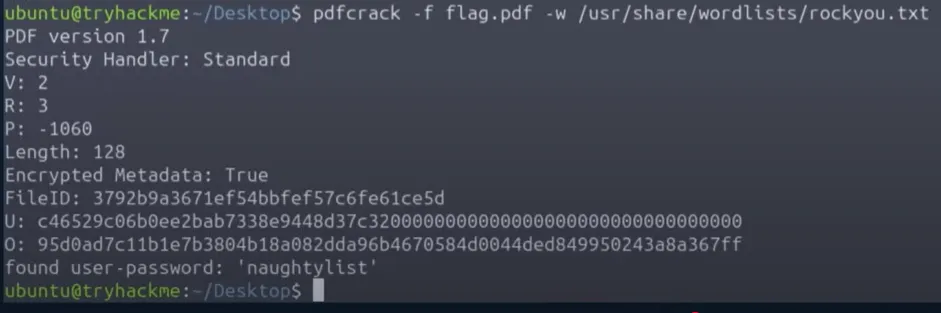
To crack password of the encrypted ZIP file: This is a 2-stage process.
zip2john flag.zip > ziphash.txtBut John alone cannot crack zip file. So we use zip2john.john --wordlist =/usr/share/wordlists/rockyou.txt ziphash.txt
Day 10: SOC Alert Triaging - Tinsel Triage
Investigate and triage alerts through Microsoft Sentinel.
Learning Objectives
- Understand the importance of alert triage and prioritisation
- Explore Microsoft Sentinel to review and analyse alerts
- Correlate logs to identify real activities and determine alert verdicts
What Is Alert Triaging?
Alert triaging is the process of quickly reviewing and prioritising security alerts to determine:
- Which alerts require immediate action
- Which can be investigated later
- Which are false positives or low-risk noise
When alerts flood in, treating every alert equally wastes time and resources.
Triaging helps SOC analysts focus on what truly matters.
Alert triage is the critical process in cybersecurity (and IT) of evaluating, classifying, prioritizing, and routing security alerts to quickly separate real threats from noise, deciding which to investigate immediately (true positives) versus dismissing (false positives), much like ER doctors sort patients by urgency to focus on the most dangerous cases first. It ensures security teams efficiently use resources, focusing on high-risk incidents to minimize impact.
Why Alert Triaging Is Important
- Not all alerts indicate real attacks
- Some alerts are false positives or benign activity
- Limited SOC resources must be used efficiently
- Fast triage can stop attacks before they escalate
Triaging turns chaos into clarity.
Core Alert Triage Factors
When reviewing alerts, analysts should always consider these four dimensions:
| Factor | Description | Why It Matters |
|---|---|---|
| Severity | Informational → Critical | Indicates urgency and business risk |
| Time | When the alert occurred and how often | Helps detect ongoing or repeated attacks |
| Attack Stage | Reconnaissance, persistence, exfiltration, etc. | Shows how far the attacker has progressed |
| Affected Asset | User, system, or resource involved | Determines potential impact |
Quick Summary
- Severity: How bad is it?
- Time: When did it happen?
- Context: Where in the attack lifecycle?
- Impact: Who or what is affected?
Next Steps After Initial Triage
Once these factors are reviewed, decide on the appropriate action:
- Escalate to Incident Response (IR)
- Perform deeper investigation
- Close or suppress the alert if confirmed benign
Diving Deeper Into an Alert
For alerts that require investigation:
1. Review Alert Details
- Detection logic
- Entities involved (users, IPs, devices)
- Event data and metadata
2. Check Related Logs
- Look for unusual or suspicious activity
- Identify patterns aligned with the alert
3. Correlate Alerts
- Search for other alerts tied to the same:
- User
- IP address
- Host or resource
Correlation often reveals a larger attack chain.
4. Build a Timeline
- Combine timestamps, events, and actions
- Reconstruct what happened before and after the alert
5. Decide the Outcome
- Escalate if indicators of compromise exist
- Investigate further if evidence is incomplete
- Close/Suppress if it’s a confirmed false positive
6. Document Everything
- Analysis steps
- Decisions made
- Lessons learned
Good documentation improves future SOC operations.
Why Microsoft Sentinel?
Microsoft Sentinel enables SOC teams to:
- Centralise security visibility
- Automate detection and response
- Investigate threats efficiently
- Reduce alert fatigue
It turns alert chaos into actionable intelligence.
Key Takeaways
- Alert triaging is essential during high-alert situations
- Not all alerts deserve equal attention
- A structured triage approach saves time and reduces risk
- Correlation and context reveal real threats
- Clear documentation strengthens SOC maturity
SIEM: Security Information and Event Management system that is used to aggregate security information in the form of logs, alerts, artifacts and events into a centralized platform that would allow security analysts to perform near real-time analysis during security monitoring.
SOAR: SOAR stands for Security Orchestration, Automation, and Response. It is a solution that helps organisations to streamline and automate their security operations, including incident management, threat intelligence, and vulnerability response.
Persistence: Malware often tries to keep a footprint in the system such that it keeps running even after a system restart. This is called persistence. For example, If a malware adds itself to the startup registry keys, it will persist even after a system restart. (one of the attack stages)
In-Depth Log Analysis with Sentinel
KQL: KQL can refer to Kusto Query Language in the context of Azure, and Kibana Query Language in the context of Elastic. Both are query languages used to explore and process data based on search terms and filters.
After triage, raw log analysis is performed using KQL.
Switching to KQL Mode
- Open the alert
- Click Events under Evidence
- Switch from Simple mode to KQL mode
- Run custom queries for deeper visibility
KQL Investigation Example
To inspect events from a specific host (app-02):
set query_now = datetime(2025-10-30T05:09:25.9886229Z);
Syslog_CL
| where host_s == "app-02"
| project _timestamp_t, host_s, Message